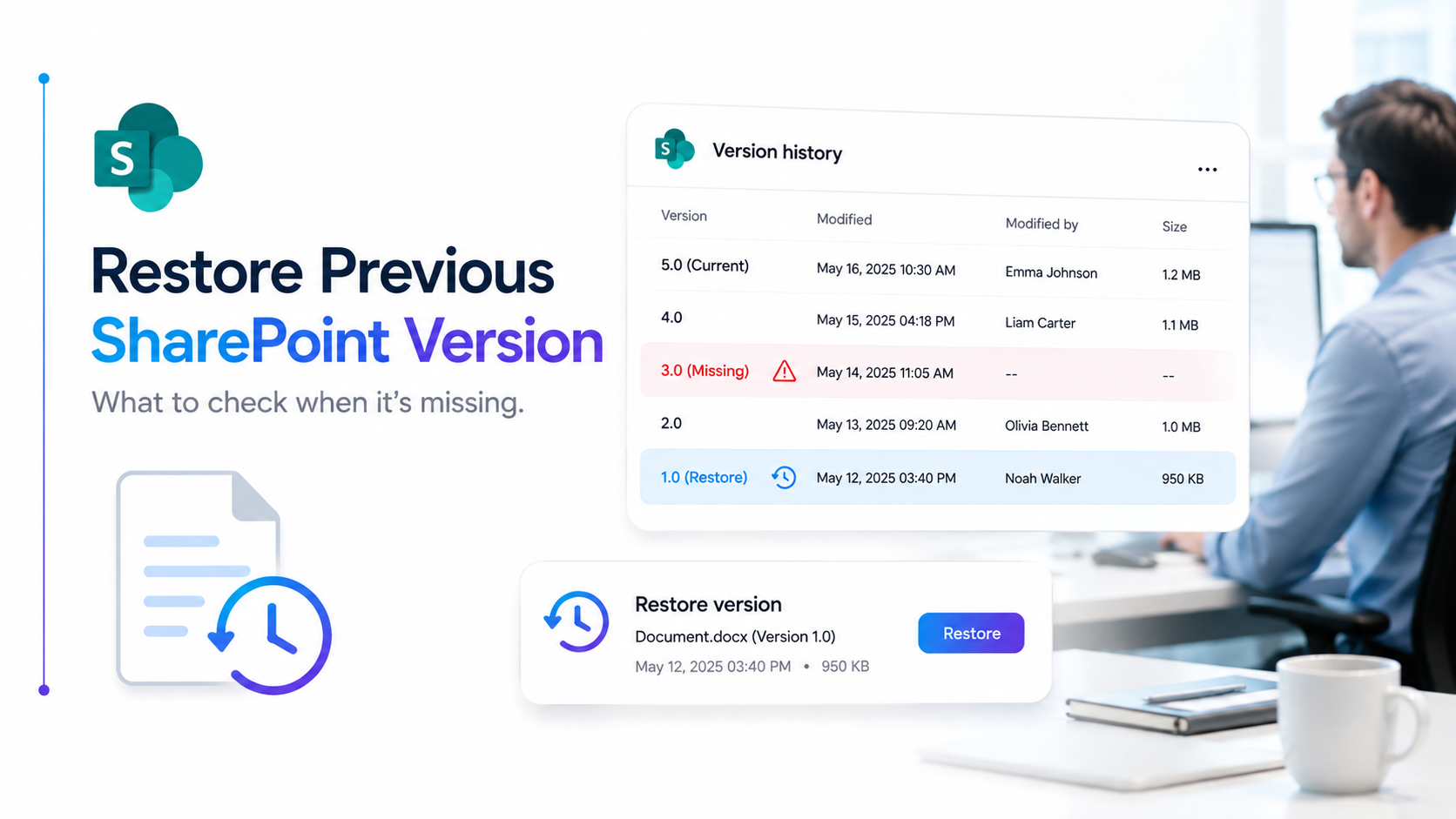
Cannot Restore an Older SharePoint File Version? Here’s What to Check
SharePoint restore previous version failures are frustrating. You go to recover a critical document, and the older version you need simply isn’t there. The version history appears empty, or the version you’re looking for has disappeared entirely. Understanding why this happens, and knowing how to fix it, can mean the difference between smooth document recovery and costly downtime or data loss.
Key Takeaway
Version history disappearance in SharePoint usually stems from retention policies, recycle bin emptying, or version limits. Most scenarios are preventable with proper configuration and early action.
In This Article
Why SharePoint Version History Becomes Inaccessible
SharePoint maintains version history automatically whenever a document is edited and saved. But here’s what most people don’t realize: understanding how versioning actually works is the key to troubleshooting why older versions disappear. SharePoint stores both major versions (published releases like 1.0, 2.0) and minor versions (drafts like 1.1, 1.2), and both count toward your library’s total version limit.
According to Microsoft’s official documentation on SharePoint versioning, version history isn’t infinite. Every document library has a configurable limit, and once you hit that limit, the oldest versions are automatically deleted to make room for new ones. It’s by design, but it often catches administrators and users completely off guard.
On top of that, version history can become inaccessible for reasons well beyond simple limit thresholds. Retention policies, compliance holds, recycle bin status, and even UI display glitches can all make version history appear unavailable or missing. The good news: most of these scenarios are both diagnosable and preventable with the right configuration changes.
“By default, SharePoint Online stores up to 500 versions per item, but this limit can be customized. Organizations often don’t realize their retention policies are purging versions automatically until a recovery attempt fails.”
Microsoft 365 Admin Center Documentation, 2024
5 Root Causes Why You Cannot Restore Older Versions
When SharePoint restore previous version requests fail, one of these five root causes is almost always at work. Identifying which one applies to your scenario determines your next troubleshooting step and your recovery options.
Cause 1: Version History Limit Reached
SharePoint stores a finite number of versions per document. In SharePoint Online, the default is 500 versions per item. Once you hit this limit, the oldest versions are automatically deleted, even if the document itself remains active. If you’re looking for a version from years ago, or if your document library sees extremely active editing patterns, this is likely your culprit. Customizing this limit requires site collection admin access and a review of your storage strategy.
Cause 2: Item Permanently Deleted from Recycle Bin
When a file or item gets deleted from a SharePoint library, it moves to the First Stage recycle bin (93 days retention by default). If it’s not restored during that window, it moves to the Second Stage recycle bin (also 93 days for most tenants). After both stages expire, the item and all associated version history are permanently deleted and can’t be recovered through standard SharePoint tools. This is a critical distinction: even if versions exist in version history while the file is in the recycle bin, restoring the file restores all its versions.
Cause 3: Retention Policy or Compliance Hold Deleted Versions
Organizations with data governance or compliance requirements often implement retention policies at the site, library, or item level. These policies can be configured to purge older versions automatically after a set retention period. Additionally, litigation holds or eDiscovery holds can restrict access to versions, making them appear unavailable even though they technically exist. Checking your site’s retention policies and compliance settings is essential before assuming versions are lost.
Cause 4: Version History Not Syncing or Displaying Correctly
Occasionally, a version history display issue isn’t actual data loss but a rendering or sync problem. The versions may exist in the backend, but the SharePoint UI fails to display them. This can happen after large migrations, incomplete sync operations, or browser cache issues. Clearing your browser cache, trying a different browser, or waiting for backend replication to complete can sometimes resolve this issue.
Cause 5: SharePoint Server vs. Online Configuration Differences
SharePoint Server (on-premises) and SharePoint Online handle version retention and recovery differently. On-premises deployments don’t have the same automatic recycle bin cleanup, and version limits are often configured differently. If you’re managing a hybrid SharePoint environment, make sure you understand which platform holds your document and what recovery options apply. Additionally, migrating documents from on-premises SharePoint Server to SharePoint Online can affect version history preservation if it’s not planned correctly.

How to Troubleshoot SharePoint Version History Issues
Once you understand the likely root causes, follow these four troubleshooting steps in sequence. They’re designed to narrow down your specific scenario quickly and safely, without requiring extensive permissions or risking further data loss.
Step 1: Check If the File Itself Was Deleted
Before investigating version history, confirm the file still exists in your library. Navigate to the document library and search for the file by name. If the file is missing entirely, it may be in the recycle bin. Check the First Stage recycle bin (Site Contents > Recycle bin), then the Second Stage recycle bin (Site Settings > Recycle bin for site collection admins). If the file is in either recycle bin, restoring it will restore all associated version history. However, if the file is permanently deleted, so are its versions.
Step 2: Verify Version History Settings on the Document Library
Navigate to your document library and open its Settings. Click on “Versioning settings” (the exact menu path varies between SharePoint Online and Server). Review the section titled “Content Approval” and “Item Version History.” Check what the current version limit is set to (e.g., 500 versions). If you see a low number like 10 or 20, this explains why older versions are disappearing quickly. Additionally, confirm whether versioning is enabled at all. If it shows “No versioning,” no versions are being retained.
Expert Perspective
In our work with SharePoint administrators, most “missing” versions are actually still within the recycle bin. Users simply don’t know to look there first. Always check both recycle bins before assuming data is lost permanently. We’ve recovered countless documents within the 93-day window that clients believed were gone forever.
Step 3: Confirm Retention Policies Aren’t Blocking Access
If your organization uses Microsoft 365 compliance features, retention policies may be automatically purging older versions. As a site admin, navigate to Site Settings > Retention Policies (or in the Microsoft 365 admin center, go to Data Lifecycle Management > Retention). Check whether any active policies target your document library or site. If a policy is configured to “Delete” items or versions after a specific retention period (e.g., 2 years), this explains why versions older than that date are gone. Retention policies override manual restoration attempts.
Step 4: Try Alternate Recovery Methods
If the file is truly deleted and not in the recycle bin, site admins can attempt site-level restoration. In SharePoint Online, admins can use the Restore Deleted Site feature if the entire site was deleted (items deleted from within a live site can’t be recovered this way). For more granular recovery, the SharePoint Management Shell (PowerShell) offers advanced recovery cmdlets. However, PowerShell recovery is only effective if the item is still within the recycle bin window. Once permanently deleted, even PowerShell can’t restore it.
What to Do If Versions Cannot Be Restored
In some scenarios, the version you need is genuinely unrecoverable through SharePoint tools. Accepting this reality and moving quickly to mitigation is critical in time-sensitive situations.
If the version is older than your recycle bin retention window and not covered by a backup, standard recovery isn’t possible. Professional data recovery services exist, but they’re expensive and success isn’t guaranteed. Before going down that path, check with your IT team to see whether your organization maintains backups of SharePoint sites or libraries. Many organizations back up critical sites externally on a daily or weekly schedule. A backup from the date the version you need existed might be restorable.
Additionally, check whether anyone on your team has a local copy of the file. Users may have synced the document to OneDrive or their local machine via OneDrive sync. That local version history might contain the version you’re looking for. This is often an overlooked recovery avenue.
Finally, if the document is a contract, legal record, or compliance-related file, your organization may have external archival copies or scanned versions. Check with your records management or legal team. Often, these departments maintain separate backups specifically for this reason.

Preventing Version History Loss Going Forward
Since some version loss scenarios are permanent, preventing future incidents is far more valuable than troubleshooting after the fact. Implement these controls now to protect your organization’s document history.
Configure Appropriate Version Limits
The default 500-version limit in SharePoint Online works for most organizations, but review your actual needs. Libraries with high-volume editing may need higher limits. Conversely, compliance-heavy libraries might need lower limits paired with automatic purging. Balance storage costs against retention requirements. Remember: too low a limit means rapid deletion; too high means storage bloat. Document your chosen limit and the reasoning behind it in your SharePoint governance policy.
Establish Clear Retention Policies
Work with your compliance and legal teams to define retention policies aligned with regulatory requirements (HIPAA, GDPR, SOX, etc.). Document the retention period for different document types explicitly. Implement these policies at the library or site level so they’re consistent and auditable. Communicate retention schedules to end users so they understand when versions will be purged. This transparency prevents frustrated discovery calls after expected versions disappear.
Implement Regular Backups
Backup is your ultimate safety net. Use Microsoft 365 backup solutions or third-party tools designed for SharePoint to take snapshots of critical libraries on a daily or weekly cadence. Backup solutions are relatively inexpensive and dramatically reduce the impact of accidental deletion or ransomware. Make sure your backup solution preserves version history, not just current file versions.
Train Users on Version History
Many version history issues stem from user confusion. Provide training to your user base on how to access version history, restore previous versions, and understand retention limits. Show them the “Version History” button in SharePoint, how to restore to a previous version, and what happens when versions are automatically deleted. Simple awareness prevents panic-driven support tickets and improves your team’s ability to self-serve.
Set Up Monitoring and Alerts
Configure alerts on critical document libraries so administrators are notified of unusual bulk deletions or policy changes. Some third-party compliance tools offer anomaly detection for SharePoint activity. Early warning allows you to investigate suspicious activity before data is permanently lost.
Frequently Asked Questions
Why can’t I see versions older than six months in SharePoint?
Your library likely has a version limit or retention policy that auto-deletes older versions. Check your library’s Versioning settings (Site Settings > Versioning Settings). If you see a limit like “Keep the last 100 major versions,” that explains why older versions are gone. Adjust this limit upward if needed, but consult your IT team to make sure storage costs are acceptable.
Can I recover a version after the recycle bin is empty?
Standard recovery isn’t possible once both recycle bins are cleared. However, site admins should check whether your organization maintains external backups. If a backup exists from the date the version was still active, it may be restorable through your backup solution. Contact your IT team immediately to explore this option.
Is there a way to restore all versions of a deleted file?
If the file is in the recycle bin, restoring it automatically restores the full version history with it. This is the ideal scenario. However, once the file is permanently deleted from both recycle bins, versions can’t be recovered separately. The file and its history are treated as a single unit in SharePoint’s recovery model.
How do I check my SharePoint version retention policy?
Site admins can check active retention policies in the Microsoft 365 admin center under Data Lifecycle Management or Retention Policies. Alternatively, go to Site Settings and look for Retention Policies. You’ll see a list of active policies, their retention periods, and which sites or libraries they target. If a policy says “Delete after 2 years,” versions older than 2 years will be automatically purged regardless of your versioning settings.
What’s the difference between major and minor versions in SharePoint?
Major versions (e.g., 1.0, 2.0) are published releases visible to all users. Minor versions (e.g., 1.1, 1.2) are drafts visible only to the editor until published. Both count toward your version limit, so if you enable versioning with major and minor versions enabled, you’ll accumulate versions twice as fast. If storage is a concern, disable minor versioning or lower your major version limit to reduce accumulation.
Setting Up SharePoint Version Recovery Best Practices
Preventing version history loss requires a structured approach. Here’s how to get started with version recovery best practices in your organization.
- Audit current settings: Within the next week, document the current version limits, retention policies, and backup status for all critical document libraries. Create a spreadsheet listing each library, its current version limit, and the retention policy applied (if any). This baseline helps you spot misconfigurations quickly.
- Define retention policy: Work with compliance and legal teams to establish organization-wide retention policies aligned with regulatory requirements. Document the retention period for general documents, contracts, financial records, and HR documents. Write this policy down and communicate it to stakeholders before implementing it in SharePoint.
- Configure versioning limits: For each critical library, set version limits appropriate to your use case. General collaboration libraries might retain 500 versions. High-volume document management libraries might need 1000+. Set these limits through Site Settings > Versioning Settings, and test that versions older than your limit are automatically purged as expected.
- Implement backup solution: Evaluate and deploy a backup solution that preserves SharePoint version history. Make sure backups run daily for critical sites and that restore capabilities are tested at least quarterly. Document your backup retention window so users and admins know how far back recovery is possible.
- Train your team: Schedule a training session for admins, document controllers, and power users. Cover how to access version history, restore previous versions, understand retention policies, and recognize when professional recovery is necessary. Provide a one-page reference guide for common scenarios.
Key Takeaway
SharePoint restore previous version failures are almost always preventable. With proper version limits, retention policies, backups, and user training in place, your organization can avoid costly data loss and ensure smooth document recovery when it’s needed.
Secure Your SharePoint Version History Today
Version history loss disrupts workflows and risks compliance violations. Our SharePoint administration experts will audit your current configuration, align retention policies with your regulatory needs, and implement backup solutions that preserve version history when you need it most.