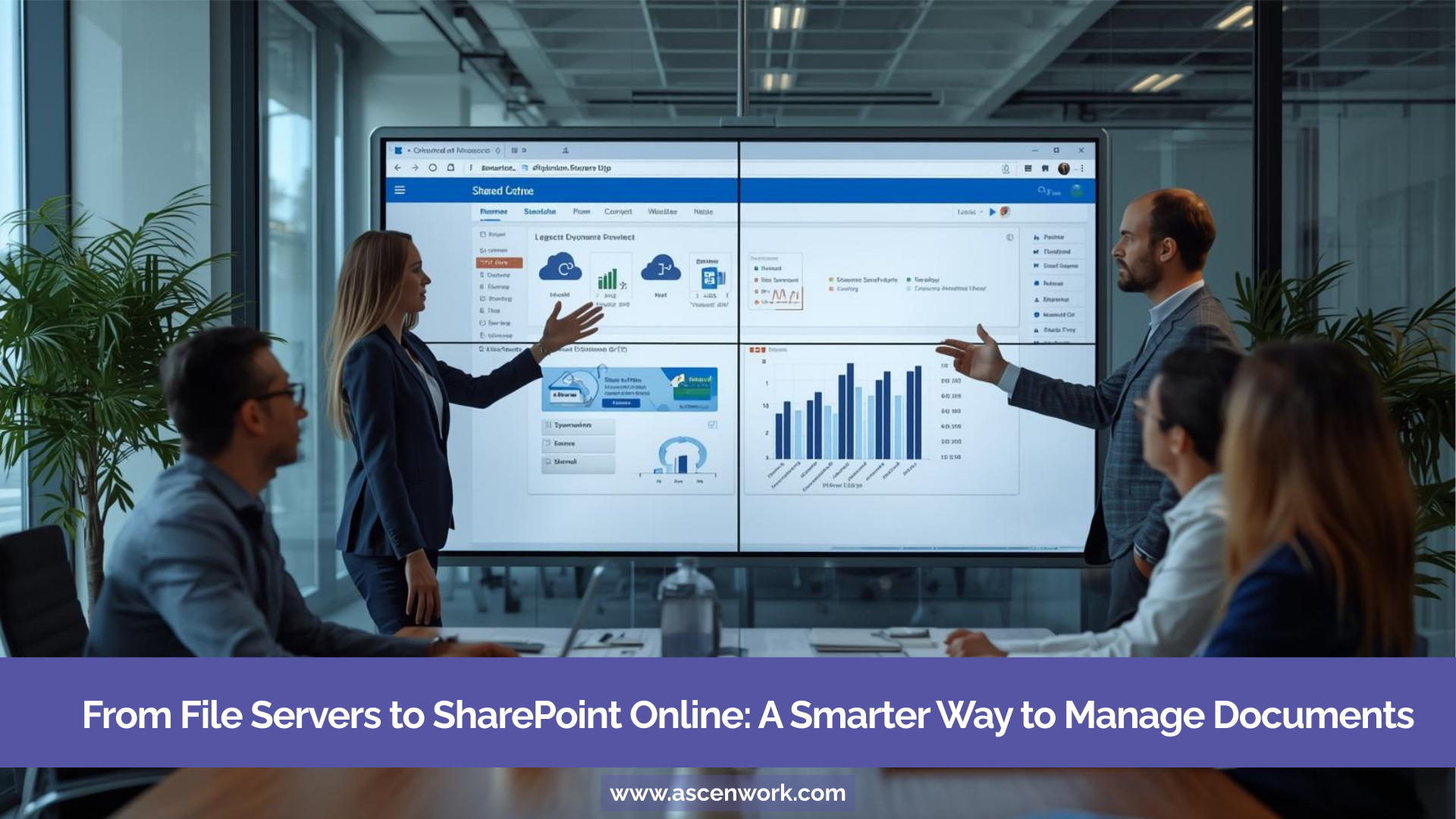
Many organizations still rely on shared drives and traditional file servers to store important business documents. But as teams grow and work becomes more digital, these systems start showing limitations.
When businesses decide to Migrate File Server to SharePoint Online, it is usually because managing documents on shared drives becomes difficult. There is no proper version control, limited remote access, and no structured document management.
File server migration is not just about moving files. It is about modernizing how your organization manages, secures, and collaborates on documents.
In this guide, we will explain the file server to SharePoint migration process, common challenges, and how enterprises can transition smoothly to a cloud-based environment.
Ready to Replace Your File Server with SharePoint Online?
Start MigrationFile servers were designed for a different era. They worked well when teams operated from one office and document sharing was limited to internal networks.
Today, businesses need flexibility, audit control, and automation.
No Proper Audit Trail
Shared drives do not provide clear tracking of who accessed or modified documents. This creates compliance and security concerns, especially for enterprises handling sensitive data.
No Automation or Workflow Control
File servers do not support structured approval workflows. Manual email approvals and file sharing increase delays and errors.
No Governance Framework
Without metadata tagging or document classification, files are stored in deeply nested folders. Over time, it becomes difficult to locate documents quickly.
SharePoint Online provides versioning, permission control, and document management capabilities that shared drives cannot offer.
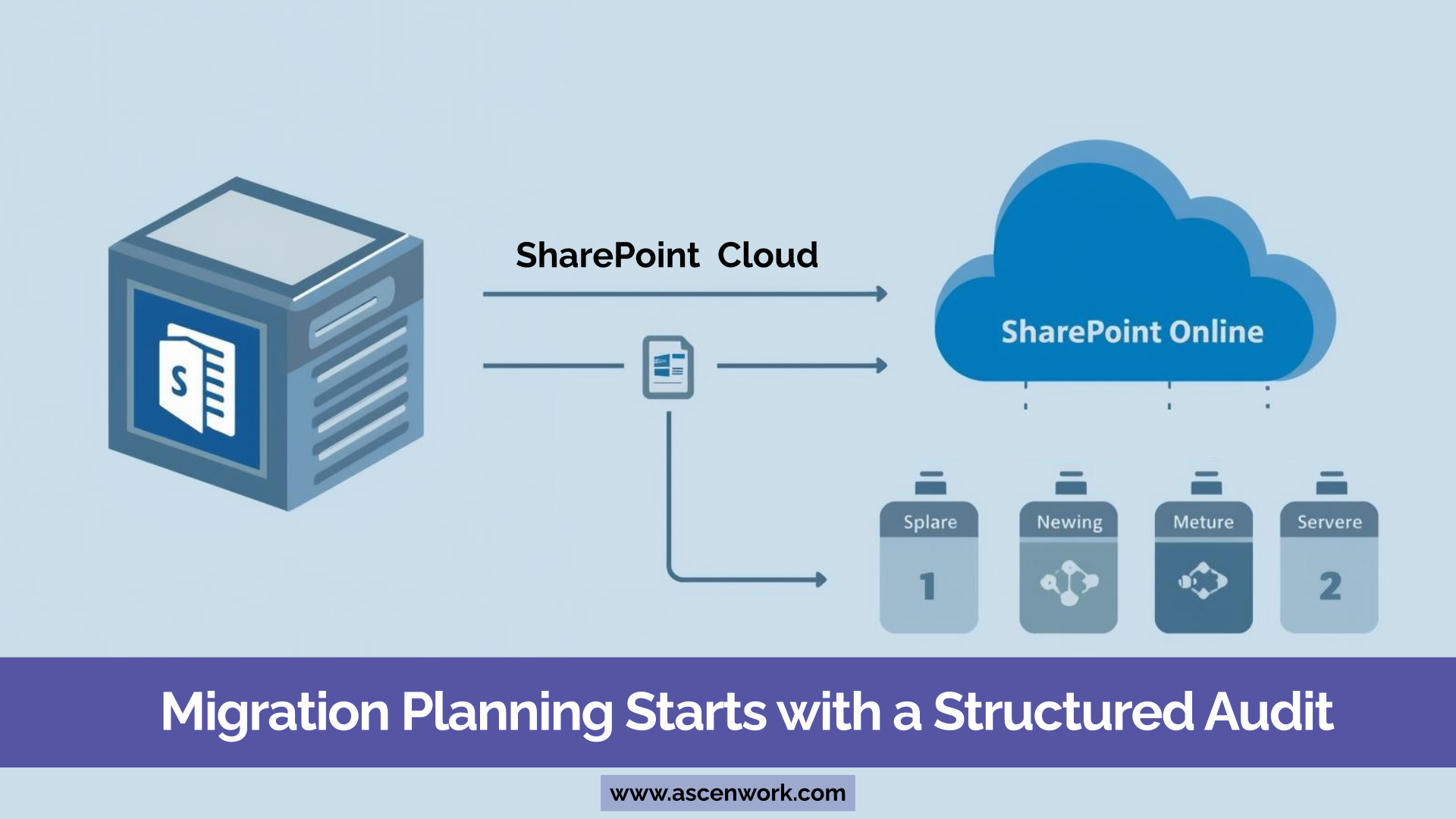
A structured file server to SharePoint migration process ensures minimal disruption and smooth adoption.
1. Environment Audit
Start by analyzing your existing shared drive. Identify:
-
Total data volume
-
Folder structure
-
Duplicate files
-
Outdated content
-
Permission settings
This helps in planning scope and complexity.
2. Data Clean-Up
Many organizations migrate everything blindly. This increases cost and confusion.
Remove obsolete files, archive unused data, and eliminate duplicates before migration.
3. Structure Redesign
Instead of copying old folder structures, redesign your information architecture. SharePoint works better with structured libraries and metadata rather than deep folder hierarchies.
4. Metadata Planning
Metadata tagging improves search and classification. It replaces the traditional folder-only approach and enhances document management efficiency.
5. Migration Execution
Use reliable migration tools and phased execution to move data securely. Testing and validation should be done at every stage.
A properly planned enterprise document migration to SharePoint reduces downtime and improves user experience.
Stop Struggling with File Servers. Move to SharePoint Online.
Book ConsultationWhile moving from file server to SharePoint, enterprises may face technical and operational challenges.
Broken Permission Mapping
Shared drives often have complex permission layers. Improper mapping during migration can lead to unauthorized access or restricted visibility.
Solution: Conduct detailed permission mapping before migration and validate during testing.
Duplicate and Redundant Files
Years of unstructured storage result in duplicate documents across multiple folders.
Solution: Perform data audit and cleanup before starting migration.
Naming Inconsistencies
File names with special characters or long paths can cause issues during cloud migration.
Solution: Standardize naming conventions before migration.
Addressing these challenges early prevents delays in cloud file migration projects.
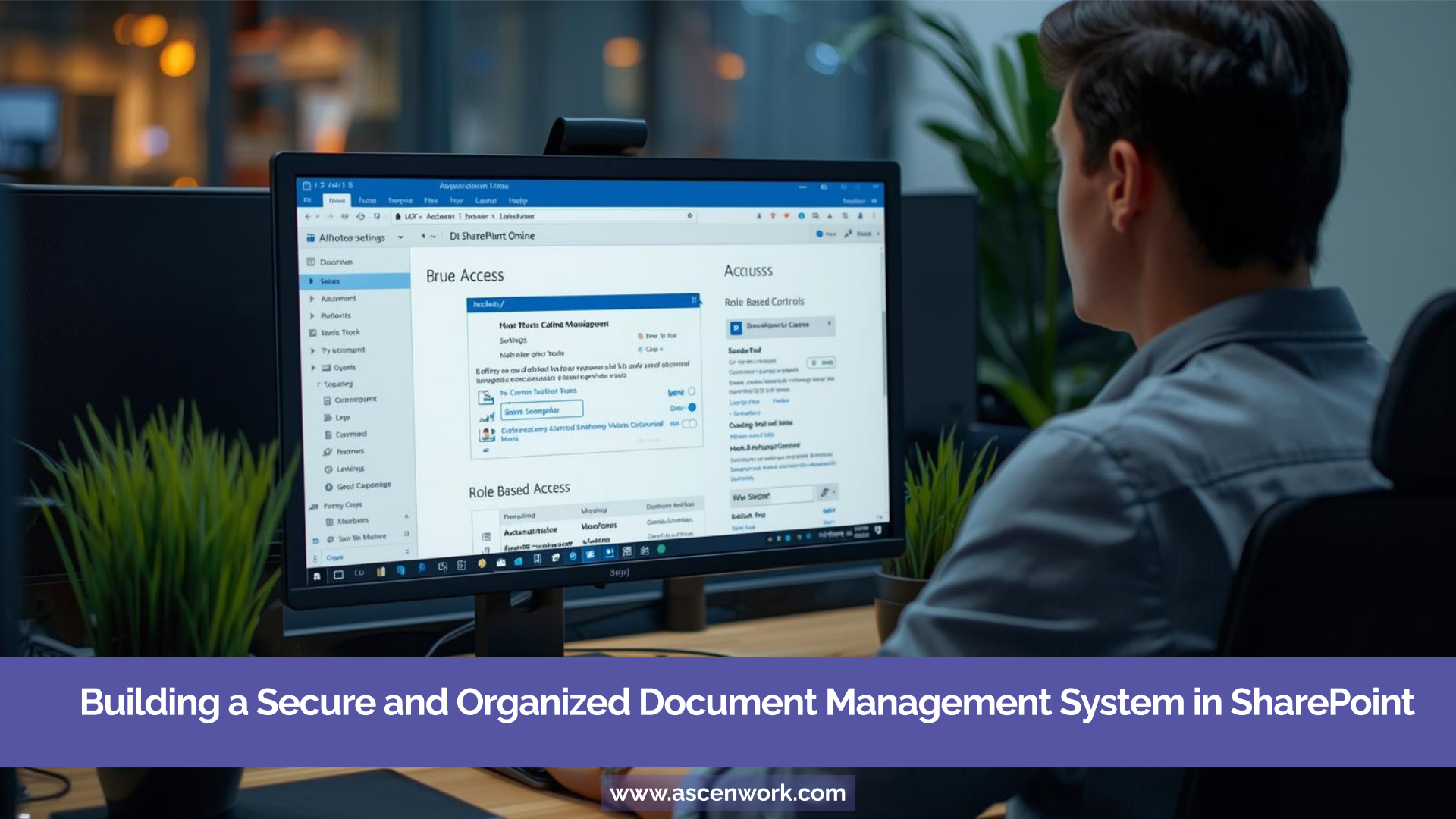
Many organizations think migration ends once files are moved. That is only the beginning.
After you replace file server with SharePoint Online, you can transform it into a structured document management system (DMS).
Here’s how:
-
Enable document versioning
-
Define approval workflows
-
Apply retention policies
-
Implement role-based access control
-
Use metadata tagging for structured classification
SharePoint document management capabilities help enterprises improve compliance, collaboration, and efficiency.
A well-configured SharePoint environment eliminates dependency on outdated shared drives.
When organizations decide to migrate file server to SharePoint Online, they are not just upgrading storage. They are improving collaboration, strengthening compliance, and preparing for scalable growth.
Traditional file servers lack governance, automation, and modern collaboration features. SharePoint Online offers centralized control, better security, and seamless integration with Microsoft 365 tools.
With proper assessment, structured planning, and phased execution, file server migration becomes a smooth and predictable process.
Upgrade from Shared Drives to Secure Cloud Document Management
Get Migration PlanHave a question? check these answers.
File servers lack version control, governance, automation, and remote collaboration features. SharePoint Online provides structured document management and better security.
For most enterprises, yes. SharePoint offers document versioning, permission control, metadata tagging, and integration with Microsoft 365 tools.
The process includes auditing data, cleaning up outdated files, redesigning structure, planning metadata, and executing phased migration using appropriate tools.
Common risks include broken permissions, duplicate files, data loss, and poor user adoption if planning is not done properly.
Timeline depends on data volume, structure complexity, and business requirements. A proper assessment helps define realistic timelines.