How to Organize Business Documents Across Multiple Departments: A Complete Guide
Organize business documents across departments, and you transform how your organization shares information, manages risk, and collaborates. Right now, your Finance team has budget spreadsheets scattered across email inboxes, OneDrive folders, and shared drives. Operations is holding three versions of the same process document. HR’s policy updates exist in four different locations, and nobody knows which one is current. This chaos costs time, creates compliance exposure, and slows decision-making.
Key Takeaway
The gap between document chaos and centralized management doesn’t require a complete technology overhaul, but it does demand intentional governance structure, clear ownership, and user adoption discipline.
In This Article
- Why Document Organization Matters for Enterprise Teams
- The Core Challenges of Multi-Department Document Organization
- The Solution: Centralized Document Management Across Departments
- Key Features of Enterprise Document Management Systems
- How to Organize Documents Across Your Organization: Step-by-Step
- Multi-Department Use Cases: How Different Teams Benefit
- Best Practices for Document Organization Across Departments
- Frequently Asked Questions
Why Document Organization Matters for Enterprise Teams
Organize business documents poorly, and your organization bleeds productivity. According to research from Microsoft, knowledge workers spend an average of 9.3 hours per week searching for information across disconnected systems and email. That’s nearly a full business day wasted per employee every single week just hunting for documents.
“Organizations without centralized document management experience a 40% increase in compliance incidents and audit failures compared to those with unified systems.”
AIIM Industry Report, 2023
Beyond lost time, poor document organization creates operational and legal risk. Compliance auditors expect to find complete, verifiable audit trails for regulated documents. Finance needs to prove that expense approvals followed policy. Healthcare and pharmaceutical companies operate under strict retention requirements. When documents are scattered across personal OneDrive folders and email threads, you can’t demonstrate compliance or quickly retrieve critical information during an investigation.
Hybrid work has intensified this problem. When your team works from different locations and time zones, email attachments and version confusion become absolute chaos. A Finance analyst in one city edits the budget document. Another team member in a different region receives the old version via email. The approval process breaks down. Decisions rest on potentially outdated information.

The Core Challenges of Multi-Department Document Organization
Every organization that attempts to organize business documents across departments runs into predictable obstacles. Understanding these challenges before you implement a solution helps you anticipate resistance and plan for success.
- Siloed repositories and systems: Each department uses its own tool. Finance prefers a network drive. Operations uses Teams. HR keeps confidential documents in a password-protected folder. You end up maintaining five different systems instead of one unified platform.
- Version control chaos: Multiple versions of the same document circulate without clear indication of which one is current. Finance sends version 1.2 to a stakeholder. Meanwhile, the latest version is 3.4, but nobody updated the filename. Teams work from conflicting information.
- Inconsistent naming and folder structures: One department uses date-prefixed names (2024-Q3-Budget). Another uses descriptive titles (Annual Budget Review Final). A third uses legacy codes. Searching across departments becomes guesswork.
- Access control gaps and security risk: Without granular permissions, you either over-share sensitive documents or under-share and frustrate collaboration. A Finance document meant for executives accidentally becomes visible to interns. A legal contract sits locked down so tightly that the Operations team can’t access it when they need it.
- No approval workflows or audit trails: Documents move without review, creating quality and compliance risk. A policy document gets circulated and referenced before Finance has reviewed it. A contract goes out without legal approval. Later, during an audit, you can’t prove who approved what or when.
- Difficulty tracking document lifecycle: You don’t know when documents were accessed, by whom, or for what reason. Retention schedules are unclear. Obsolete documents remain in circulation because nobody formally retired them.
The consequence: slower collaboration, increased security risk, and vulnerability during audits or investigations. Your organization can’t scale efficiently because document management becomes a bottleneck instead of a tool that enables work.
The Solution: Centralized Document Management Across Departments
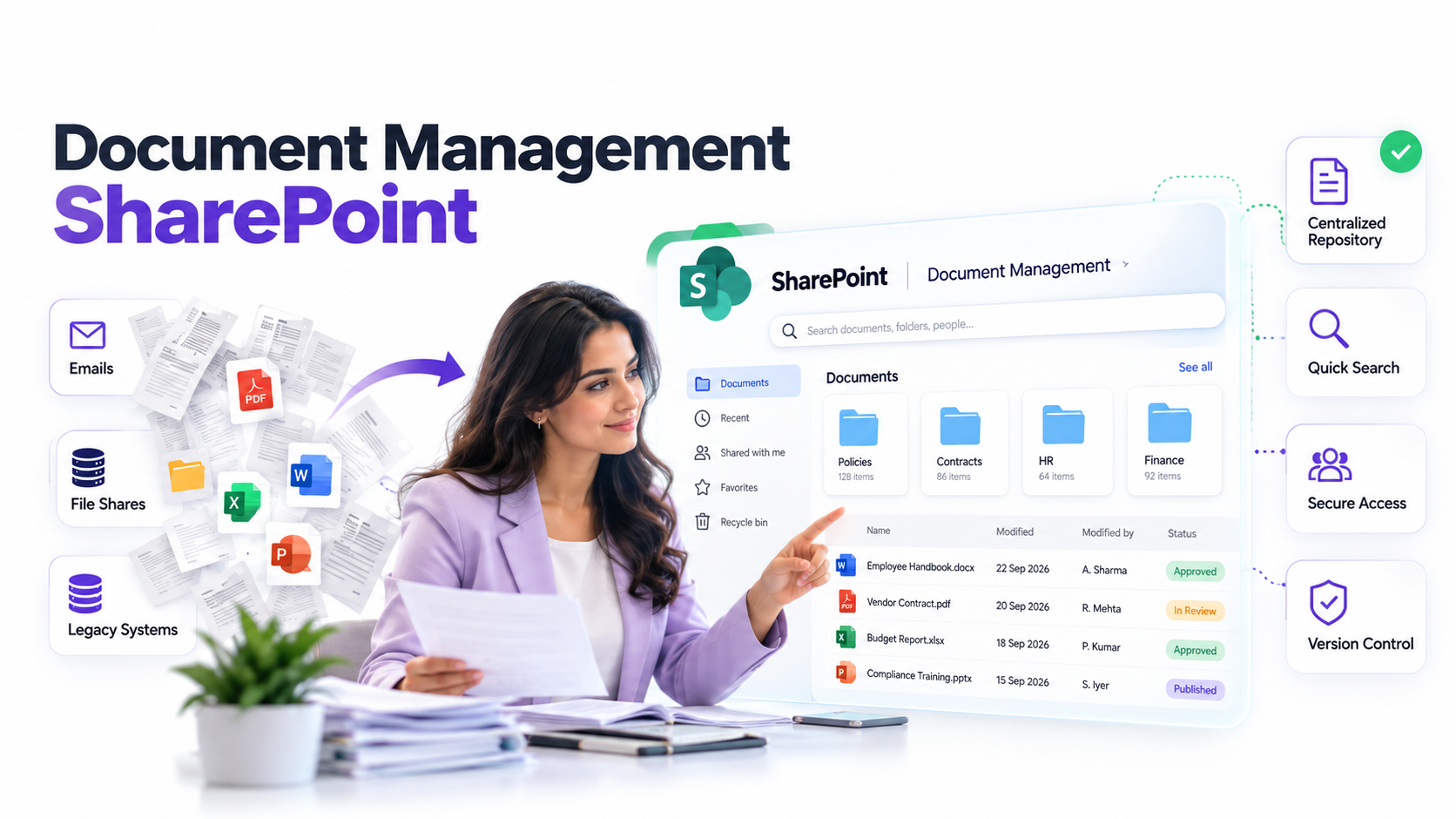
Organize business documents using a centralized document management system, and you create a single source of truth while respecting departmental boundaries and governance needs. A platform built on SharePoint within Microsoft 365 solves each pain point systematically.
Instead of five separate systems, all departments access a unified repository. Instead of email attachment chaos, Finance publishes approved budget documents to a shared workspace where everyone accesses the current version automatically. Instead of unclear permissions, you assign role-based access controls that ensure HR documents stay private, Finance documents reach only approved stakeholders, and Operations can collaborate openly where needed.
Expert Perspective
The goal isn’t to eliminate departmental autonomy. It’s to create consistent governance rules while allowing each team to own and control content structure within their workspace. A Finance workspace operates independently from an HR workspace, but both follow the same naming conventions, approval workflows, and retention policies set at the organizational level.
When evaluating document management solutions, prioritize these capabilities:
- Document permissions and role-based access control: You need fine-grained control over who sees, edits, and approves documents without requiring IT intervention for every permission change.
- Automatic version control and check-in/check-out: The system tracks every version, preventing confusion over which draft is current. Users check out documents to edit them, preventing simultaneous conflicting changes.
- Metadata and document classification: Tags, custom properties, and metadata make documents discoverable across departments without relying solely on folder hierarchies.
- Workflow automation: Route documents through approval processes. Finance invoices over a threshold go to a manager, then a director. HR policy updates route through compliance and legal before publication.
- Integration with existing tools: The system must work seamlessly with Teams, Outlook, OneDrive, and other platforms your organization already uses. Users should access and collaborate on documents without logging into a separate portal.
- Compliance and audit capabilities: Complete audit trails prove who accessed what document when. Retention policies ensure documents are held or disposed of according to legal requirements.
Key Features of Enterprise Document Management Systems
Understanding the specific capabilities of a centralized platform helps you plan implementation and anticipate how each feature solves your current pain points.
Centralized Repository: All departments access documents from one location instead of scattered across email, OneDrive, shared drives, and external file servers. This eliminates duplicate files and eliminates confusion over which version is authoritative. When Finance publishes a policy update, Operations and HR immediately see it in the same place they always look for Finance documents.
Department Workspaces: Create distinct team sites for each department while maintaining organizational governance from the top level. Finance has its own workspace. Operations has another. HR has a third. Each workspace maintains its own folder structure and local collaborators, but all inherit the same governance rules, naming conventions, and retention policies.
Document Permissions and Access Control: Role-based access ensures sensitive documents stay protected without manual intervention. An HR employee can see all HR documents but can’t access Finance records. A Finance analyst can access expense reports but can’t view employee personal files. A project manager can grant temporary access to a contractor without involving IT.
Version Control and Approval Workflows: Only approved versions become final. Workflows route documents to the right reviewers at the right time. Finance reviews expense policies. Compliance approves retention schedules. Operations verifies process documents before publication. Each department defines its own approval steps without affecting others.
Metadata and Document Organization: Beyond folder hierarchies, you tag documents with custom metadata. A contract document might be tagged with contract type, counterparty, value range, and legal status. These tags make documents searchable and support automated workflows. A query for “contracts over $100K with manufacturing partners” returns relevant results instantly.
Digital Document Lifecycle Management: Track documents from creation through approval, distribution, usage, retention, and disposal. You know when a document was created, who edited it, when it was approved, who accessed it, and when it should be deleted. This transparency supports compliance and prevents obsolete documents from circulating.
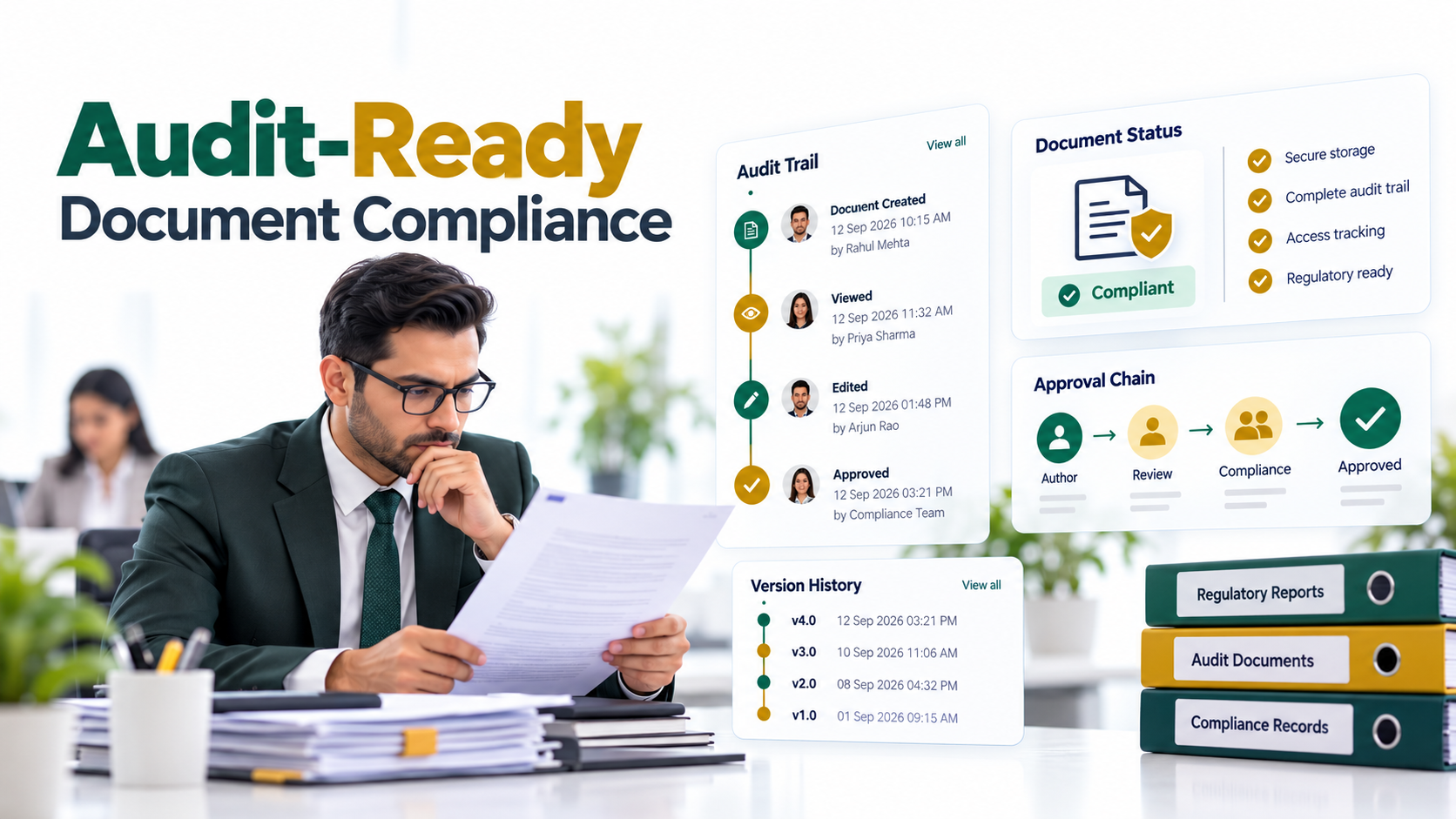
Compliance and Audit Trails: Every action is logged. Who created the document. Who edited it and when. Who approved it. Who accessed it and from where. During audits for SOX, GDPR, HIPAA, or industry-specific regulations, you produce complete, verifiable audit trails that prove compliance.
How to Organize Documents Across Your Organization: Step-by-Step
Organizing business documents across departments follows a structured path. Each step builds on the previous one.
- Audit your current document landscape. Map where documents currently live: shared drives, Teams, OneDrive, email, external systems, local machines. Assess volume by department and document type. Identify high-risk documents that lack proper controls. Outcome: You understand the starting point and can plan migration scope.
- Define your governance model. Establish naming conventions, folder structures, permission levels, and retention rules that all departments will follow. Decide who owns each document type. Define approval processes for sensitive documents. Outcome: Everyone operates under the same rules, eliminating inconsistency and confusion.
- Design department workspaces. Create team sites for Finance, Operations, HR, Legal, and other departments. Balance centralized oversight with departmental autonomy. Each workspace has its own owners and local collaborators. Outcome: Teams maintain control over their content while the organization maintains governance.
- Configure permissions and access controls. Set up role-based permissions so employees only see documents relevant to their role. Finance analysts access Finance documents. HR employees access HR documents. Shared documents between departments have explicitly controlled access. Outcome: Sensitive information stays protected. Collaboration remains friction-free for authorized parties.
- Establish approval workflows and version control. Route critical documents through approval processes. Configure check-in/check-out to prevent simultaneous conflicting edits. Define which documents require approval before final publication. Outcome: Document quality improves. Compliance risk decreases. Everyone knows the document they’re using has been reviewed.
- Migrate legacy documents and set retention policies. Move existing documents to the new system with appropriate metadata. Organize them according to your new naming and folder structure. Establish clear retention schedules: how long documents are kept and when they’re disposed of. Outcome: Historical documents are accessible and organized. Future documents follow the same discipline.
- Train users and measure adoption. Conduct training sessions by department. Emphasize why the change matters, how to use the system, and where to find help. Track adoption metrics: how many users access the system weekly, how many documents are uploaded to the new system versus the old ones, and adoption time by department. Iterate based on feedback. Outcome: Users adopt the new system confidently. Old systems are retired cleanly.
Multi-Department Use Cases: How Different Teams Benefit
Different departments use document management differently. Understanding these use cases helps you anticipate implementation challenges and benefits.
Finance and Accounting
Finance needs a centralized repository for invoices, receipts, budget documents, audit reports, and financial statements with version control and approval workflows. When you organize business documents this way, auditors access complete audit trails instantly. Accounts payable reduces processing errors because the current approved invoice template is always in the same location. Month-end close accelerates because Finance doesn’t waste time hunting for supporting documents.
Human Resources
HR requires secure storage for employee records, benefits documents, policy updates, and performance reviews with restricted access. When employees need to verify their benefits, they access approved documents from a dedicated HR workspace instead of asking HR to email them a file. When HR updates a policy, version control ensures everyone sees the latest version and obsolete versions are archived.
Operations and Compliance
Operations publishes process documentation, standard operating procedures, and compliance checklists to a shared workspace where all teams reference the current version. New employees find all procedures in one place instead of hunting through email history. Compliance officers verify that procedures are current and approved. Outdated procedures are automatically retired according to retention policies, preventing accidental use of obsolete processes.
Legal and Risk Management
Legal needs secure document storage with rigorous access control and litigation holds. When a legal matter requires document preservation, Legal places a hold that prevents deletion. Metadata tagging allows rapid retrieval during legal discovery. Audit logs prove that only authorized parties accessed sensitive contracts and agreements.
Project Management
Project teams use shared project workspaces where collaborators access deliverables with integrated version control and approval workflows. Instead of email attachments fragmenting across inboxes, all project documents reside in one workspace. Project managers enforce approval workflows: design documents require review before development begins. This discipline reduces rework and keeps projects organized.

Best Practices for Document Organization Across Departments
Implementation success depends on discipline and ongoing management. Follow these practices to ensure your document management system stays effective as your organization grows.
Establish a clear taxonomy before migration: Define naming conventions and folder structures in writing before moving documents. A taxonomy designed by committee takes time, but inconsistency costs more time downstream. Document your decisions: why you chose the structure you did, what exceptions exist, who to ask when questions arise.
Assign document stewards for each department: Each department needs a document owner responsible for governance. Finance has a Finance document steward who monitors permissions, retention, and policy compliance. This person doesn’t do all the work, but they own the outcomes and make decisions when questions arise.
Use metadata strategically to support discovery and automation: Tags and custom properties make documents searchable. A contract document tagged with contract type, counterparty, value, and expiration date becomes automatically queryable. This supports both human search and automated workflows.
Automate workflows to route documents to the right approvers: Don’t rely on manual handoffs. Finance invoices over a threshold route automatically to a manager, then a director. This ensures consistent approval and creates audit trails that manual email approvals can’t.
Conduct regular audits of permissions, retention, and document usage: Quarterly, review who has access to sensitive documents. Verify that retention policies are enforced. Check which documents haven’t been accessed recently, they might be candidates for archival. These audits catch problems before they become liabilities.
Invest in change management and user training: Technology is only half the battle. Users need to understand why the new system matters, how to use it, and where to find help. Departments that invest in training and change management achieve adoption 3x faster than those that don’t.
Integrate the system with existing tools your organization uses: If the document management system doesn’t integrate with Teams, Outlook, and OneDrive, users will create workarounds and the system becomes another separate tool. Seamless integration means users access documents from the tools they already use every day.
Frequently Asked Questions
How do we handle documents that multiple departments need to access?
Create shared document sets or folders with carefully managed permissions. Use metadata tagging to make documents discoverable across departments while controlling granularly who can edit versus view only. For example, a company-wide policy lives in a shared location. Finance and HR both need access, but HR can edit it while other departments can only read. Permissions reflect this distinction without requiring separate copies.
What happens to documents stored in old file servers or shared drives?
Plan a structured migration: assess what’s worth keeping, apply metadata during the move process, and retire old systems once documents are moved and users have adopted the new system. Don’t delete old systems immediately. Run them in parallel long enough to confirm that all critical documents migrated successfully and users found them in the new location. Then decommission the old systems.
How do approval workflows work, and can they be customized for different departments?
Workflows route documents to reviewers based on rules you define. An invoice over $10,000 routes to a manager, then to a director. A policy document routes to Compliance, then Legal, then the CFO. Most enterprise systems allow department-specific workflows without requiring custom coding. Finance might have a 3-step approval process while Operations has 2 steps. The system enforces each department’s process independently.
What access controls prevent unauthorized viewing of sensitive documents?
Role-based permissions grant access based on job function. An HR employee can’t see Finance documents by default. A contractor can access only project documents, not company records. Document-level permissions allow exceptions: granting a Finance executive access to a specific legal contract. Audit logs track who accessed what, supporting compliance verification and investigation if needed.
How long does it take to see productivity improvements from a centralized system?
The timeline depends on several factors: the volume of documents you’re organizing, how many departments are involved, how thoroughly you enforce governance initially, and how quickly users adopt the new system. Rather than estimate a timeframe, we recommend defining success metrics upfront: hours spent searching for documents, measure this before and after, approval cycle time, compliance audit results, and user satisfaction. Track these metrics and adjust your approach based on what you observe. A discovery conversation with your organization helps identify the specific factors that will shape your timeline.
What happens if a user accidentally deletes an important document?
Enterprise systems maintain version histories and recycle bins. Deleted documents remain recoverable for a defined period, typically 90 days. Users can restore deleted documents themselves, or administrators can recover them. Audit logs show who deleted the document and when. This built-in safety net prevents accidental data loss.
Ready to Transform Your Document Organization
Centralizing business documents across departments eliminates confusion, accelerates collaboration, and reduces compliance risk. Our experts help you design and implement a document governance strategy tailored to your organization’s structure and needs.