

SharePoint · Media and entertainment
SharePoint workflow system that runs event budgets from estimate to invoice approval
An events and experiential marketing agency moved project budgets, margins, vendor orders and invoices out of Excel and email into one SharePoint workflow system. Each project now runs from budget to closure with clear approvals.
- Client
- An events and experiential marketing agency
- Industry
- Media and entertainment
- Platform
- SharePoint
01The challenge
The agency ran many projects at once across business development, operations, finance and management. Budgets, margins, approvals, vendor orders and invoices were tracked by hand in spreadsheets and email, so nobody had one reliable view of what a project was expected to cost, what had been ordered and what had been paid. Our project management and business analyst team documented the existing process, built a prototype and presented both to management. After several meetings, both sides agreed to automate the full cycle.
02The solution
We built a custom workflow system on Microsoft SharePoint Server 2019, installed on premises and hosted on the client's own infrastructure. The build took 12 to 14 weeks in 2018 and 2019. It covers business development, operations, accounts and management, with validations, approvals, maker and checker controls, management dashboards and an escalation route for projects with a margin below 30%. Each role has a dashboard that shows only what is waiting for them and the status of every project. Role-based access keeps confidential costs and margins with the people who need them.
How the workflow runs
- Create the projectA business user enters the project, the budget lines, the client rate and the estimated internal cost. The system calculates the margin.
- Route by marginA margin of 30% or above goes straight to the accounts team. Below 30%, management reviews the project and approves or rejects it with a remark.
- Create the job IDThe accounts team creates the job ID from a pop-up. The project then appears on the operations dashboard.
- Assign vendorsOperations selects a vendor, picks the items for that vendor, adds them and submits the purchase order.
- Approve and print the purchase orderAccounts approves each purchase order and generates it. Approved orders can be printed.
- Add vendor invoicesOperations adds the invoice number, date, amount and file against the purchase order.
- Approve invoices in two stepsThe business user approves or rejects each invoice, with a remark on rejection. A rejected invoice can be edited and sent again. Accounts gives the final approval.
- Close the projectProjects are closed from a close project dashboard. A project can also be closed early with a remark.
Screens from the system
These screens are redrawn with sample data. No client information is shown.
Screen 1 of 8Built for this client
Project budget form
Budget lines with client rate and internal cost. The system adds them up and shows the margin before the project is sent for approval.
What the system covers
- Projects and budgetsClient cost and internal cost by item, margin calculated automatically, agency commission estimates, tax information and document upload.
- Routing by marginProjects at 30% or above go to accounts. Lower margins need management approval with a remark.
- Vendors and purchase ordersVendor details, purchase orders raised from approved items, accounts approval and a printable order.
- Invoices with three checksOperations adds the invoice, the business approves or rejects it, and accounts gives the final approval. Rejected invoices can be corrected and resubmitted.
- Extra itemsThe business user can add extra items to a running project. They go through purchase order creation and approval again.
- Project closureA close project dashboard and early closure with a remark, with a full history of each project.
- Master dataClients, vendors, employees, departments, navigation, job IDs and purchase order IDs maintained in one place.
- Roles, dashboards and reportsA dashboard for each role, role-based access, employees assigned to each project and management reports.
Built with Microsoft SharePoint Server 2019 (on-premises) · Hosted on the client's infrastructure · Custom forms and lists · Custom electronic signature · Approval workflows · Role-based permissions · Management dashboards
The result
- Manual steps removed from project creation to closure
- Budget, cost, purchase order and invoice status visible for every project
- Several projects managed at once on one platform
- Confidential cost and margin data limited to authorised roles
More case studies
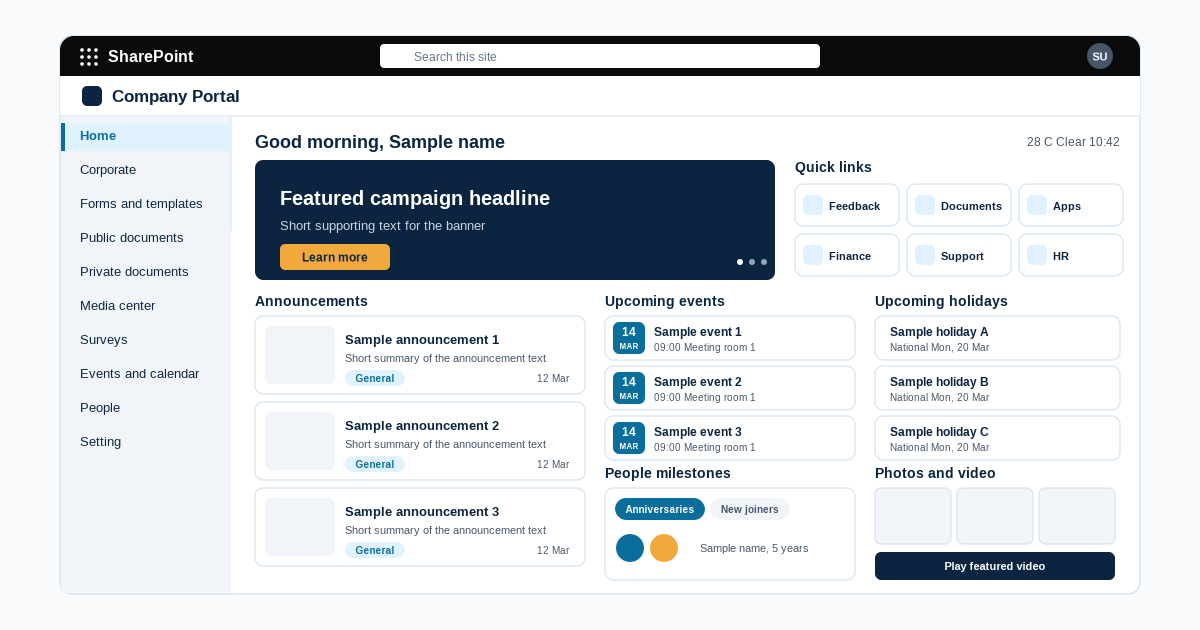
Company intranet portal on SharePoint Online for an airport operator
An airport operating company wanted one place for news, corporate information, business systems, media, surveys, events and a staff directory. We built a SharePoint Online intranet with an admin panel, so named editors publish content under controlled rights.
Read the case study →SharePoint · Power Automate · Food and beverage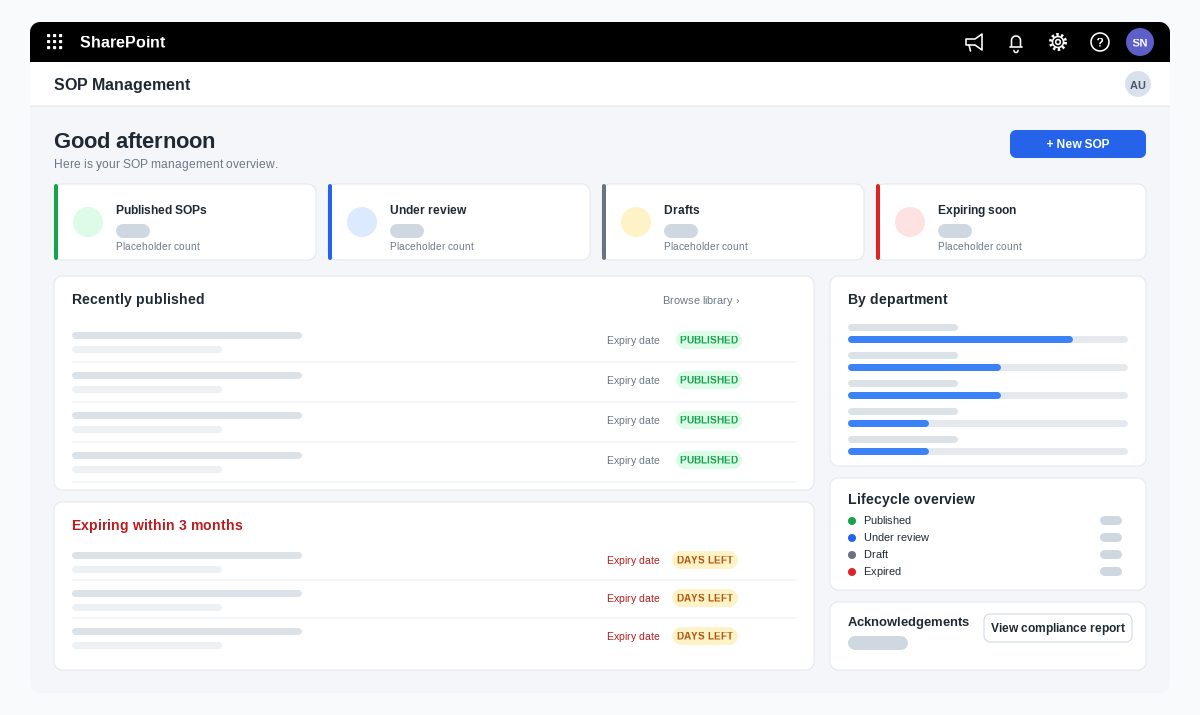
SOP management on SharePoint for a food manufacturer
A bakery ingredients manufacturer wanted procedures that are approved, read and proven to be understood. We adapted our SOP Management product on SharePoint and added reading time with a quiz, renewal and revision, and print-ready controlled copies.
Read the case study →SharePoint · Power Automate · AI and automation · Technology and IT services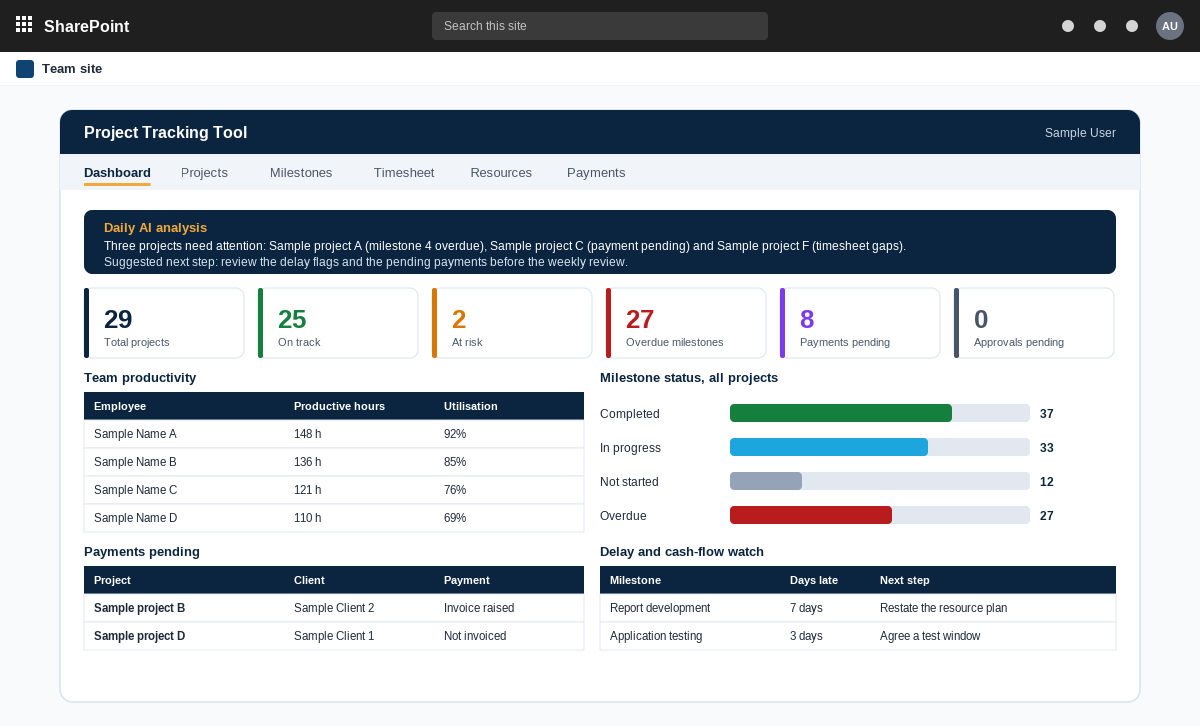
Project management tool on SharePoint with AI analysis
A project management tool built on SharePoint in the customer tenant. It tracks projects, milestones, timesheets and payments, and adds AI analysis through an n8n workflow.
Read the case study →