SharePoint Troubleshooting: Common Issues and Fast Fixes for Admins
SharePoint troubleshooting doesn’t have to feel like detective work in the dark. Permission denied errors, search returning blank results, and workflows stuck in limbo are frustrations every SharePoint administrator encounters. The good news: most issues follow predictable patterns with known diagnostic approaches and solutions.
Key Takeaway
The 80/20 rule of SharePoint troubleshooting: 80% of issues stem from five root causes – permission inheritance conflicts, search indexing delays, workflow state management, site quota limits, and authentication timeouts. Master diagnostics for these five categories and you’ll solve the majority of problems your team faces.
In This Article
- Why SharePoint Administrators Need a Troubleshooting Playbook
- The 5 Most Common SharePoint Issues (And Why They Happen)
- Troubleshooting SharePoint Permission Issues
- Fixing SharePoint Search Problems
- Resolving SharePoint Workflow Issues
- Quick Diagnostic Tools Every Admin Should Know
- Site Performance and Quota Issues
- Authentication and Access Errors
- When to Escalate to Microsoft Support
- Frequently Asked Questions
Why SharePoint Administrators Need a Troubleshooting Playbook
Microsoft 365 adoption has accelerated dramatically across enterprises globally. Organizations are increasingly relying on SharePoint as their central content hub for document management, collaboration, and business process automation. But here’s the thing: increased adoption brings increased complexity, and more support tickets.
Unresolved SharePoint issues create real business friction. Users can’t access critical documents. Workflows stall in the middle of approval processes. Search returns irrelevant results, forcing users to browse manually. Each delay reduces platform adoption, frustrates teams, and creates avoidable support ticket backlogs.
“Collaboration platform downtime costs enterprises an average of $15,000 to $30,000 per hour in lost productivity, delays in decision-making, and support overhead.”
Gartner Collaboration & Content Services Research, 2023
Worth noting: SharePoint troubleshooting differs fundamentally between on-premises and cloud (Microsoft 365/SharePoint Online) environments. Permission models, search architecture, and diagnostic tools vary. A systematic approach to diagnosis, not just memorizing error codes, is what separates confident admins from those overwhelmed by complexity.
The 5 Most Common SharePoint Issues (And Why They Happen)
SharePoint troubleshooting becomes predictable once you recognize these five recurring problem categories. Understanding the root cause behind each prevents the same issues from re-emerging.
1. Permission Issues: “Access Denied” Despite Being in the Right Group
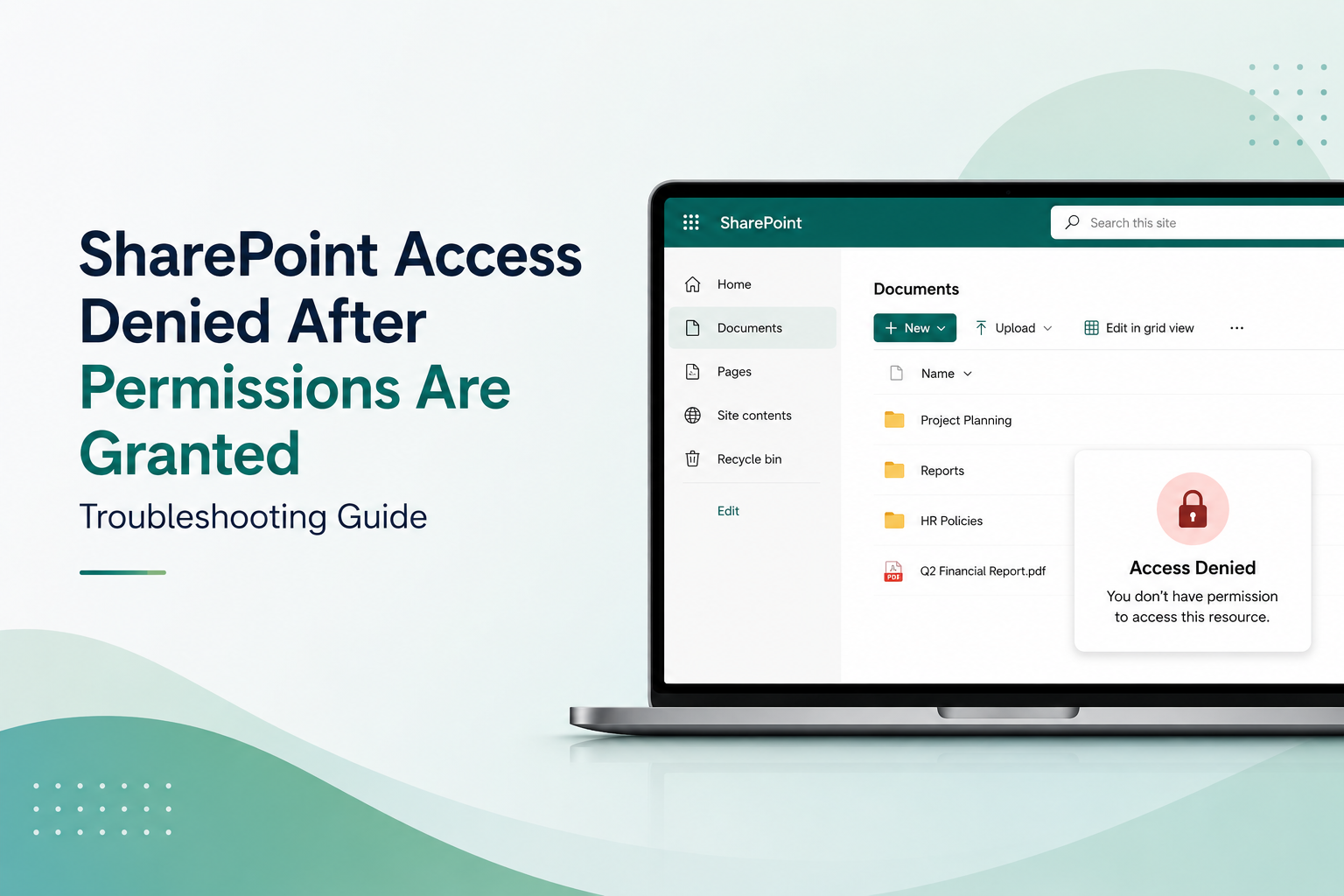
Users report access denied errors even when they’re members of the correct SharePoint group. This happens due to permission inheritance breaks at the wrong level, group membership sync delays in hybrid scenarios, or site collection admin mistakes when managing granular permissions. The user appears authorized in the group, but SharePoint’s permission evaluation logic finds a blocking assignment at a higher level.
2. Search Problems: Index Lag, Blank Results, or Irrelevant Matches
Search returns stale results hours after content is uploaded, or queries return nothing when matching content clearly exists. Root causes include crawl schedule misalignment, search index staleness during high content volume periods, incorrect managed property mappings, or query rule conflicts. Users lose confidence in search and revert to manual browsing.
3. Workflow Failures: Async Timeouts and State Machine Errors
Workflows stuck in “In Progress” state indefinitely, or failing silently without clear error messages. Often rooted in downstream system delays (API timeouts, external database queries, list item update queues exceeding thresholds), service account permission gaps, or workflow timeout configurations set too short for actual processing requirements.
4. Site Performance Issues: Slow Load Times and Quota Alerts
Sites become sluggish or admins suddenly hit quota limits. Oversized document libraries with millions of items, unchecked site collection sprawl, or large list views without filtering cause performance degradation. Quota exhaustion sometimes reflects genuine business growth; other times it indicates content hasn’t been archived or cleaned up in years.
5. Authentication and Access Errors: MFA Conflicts and Cached Credential Issues
External users can’t access shared sites. Internal users get prompted for credentials repeatedly despite valid MFA setup. Service accounts lose permissions between password rotations. These issues delay access for legitimate users and create frustration during time-sensitive collaboration.
Each of these delays content delivery, fragments team collaboration, and creates support ticket backlogs that pull your attention from strategic work. The diagnostic methodology below turns these problems from mysterious into manageable.
Troubleshooting SharePoint Permission Issues
Permission issues are the most frequent SharePoint troubleshooting complaint we see. SharePoint troubleshooting for permissions requires understanding that permissions inherit downward through site hierarchy, unless inheritance is broken at a specific level. When inheritance is broken incorrectly, troubleshooting becomes exponentially harder.
Why “Permission Denied” Appears for Authorized Users
SharePoint evaluates permissions through a hierarchical model: Site Collection, Site, Library, Folder, Item. A user inherits permissions from their parent level unless inheritance is broken and unique permissions are assigned. If someone breaks inheritance at the folder level and forgets to assign the user direct access, that user sees access denied despite having site-level permissions.
In hybrid or federated scenarios where Microsoft 365 syncs with on-premises Active Directory, group membership changes take time to propagate. A user added to a group this morning won’t see SharePoint access for 30 minutes to 2 hours. Admins often mistake sync delay for a permanent permission problem.
Expert Perspective
Permission inheritance is the number-one source of administrative confusion in SharePoint troubleshooting. Breaking inheritance at the wrong level creates cascading access problems. When you encounter a permission issue, always map the inheritance chain first before assigning new permissions. This prevents layering new mistakes on top of existing ones.
Step-by-Step Permission Troubleshooting Approach
Step 1: Verify Group Membership
Navigate to SharePoint Admin Center, then Sites, then Active Sites. Select your site and go to Permissions. Confirm the user is listed in the SharePoint group they claim to be in. On top of that, check the Microsoft 365 admin center to verify the user’s Office 365 group membership hasn’t been removed or suspended.
Step 2: Check Permission Inheritance at Each Level
Open the library or folder where access is failing. Click Settings, then Library Settings, then Permissions for this Document Library. If it says “Permissions inherited from parent,” then inheritance is active. If it says “This document library has unique permissions,” then inheritance is broken at this level. Document where inheritance is broken. This is your first diagnostic clue.
Step 3: Review Site-Level vs. List-Level Permissions
A user with Contribute permission at site level might have View Only at the library level, which breaks inheritance. Check whether unique permissions assigned at the library are more restrictive than site-level permissions. SharePoint honors the most restrictive permission in the hierarchy.
Step 4: Test with Direct User Assignment (Rule Out Group Sync Delays)
As a diagnostic step only, assign the user directly to the library or list with appropriate permissions. If direct assignment works but group membership doesn’t, you’ve confirmed a group sync delay. Wait 30 to 60 minutes and re-verify group membership propagation. Remove the direct assignment after testing.
Step 5: Check for Broken Permission Inheritance
Navigate to the problematic library or folder. Click Manage Permissions. If the permission chain shows “Inherited from Parent” at every level, inheritance is intact. If any level shows “Unique Permissions,” click that level and verify the user or their group is explicitly listed with appropriate permissions.
Step 6: Validate External User Access
If the user is external, confirm they’ve accepted the sharing invitation. Check the external sharing settings at site collection level: SharePoint Admin Center, Sites, then Sharing. Verify your organization allows external sharing and that the specific domain or user isn’t blocked.
Common Permission Fixes
- Clear browser cache and cookies, then attempt access in a private or incognito window to rule out cached credential conflicts
- Restore permission inheritance at the affected level if it was broken unnecessarily
- Assign the user or group the correct permission level – Edit, Contribute, or Read – at the appropriate hierarchy level
- Wait 30 to 60 minutes for Azure AD sync to propagate group membership changes to SharePoint
- Reset the user’s password and clear Office 365 sign-in sessions if permission inheritance is intact but access still fails
- For external users, re-send the sharing invitation and confirm the user’s email address matches the invitation recipient exactly

Fixing SharePoint Search Problems
SharePoint troubleshooting for search issues requires understanding that search doesn’t index content instantaneously. The search crawler works on a schedule. New content added to SharePoint today may not appear in search results for hours. Admins often mistake normal index lag for a search failure.
Why Search Returns Incomplete or Stale Results
SharePoint maintains a search index, which is a database of indexed content. When you search SharePoint, you’re querying the index, not scanning live content. Search quality depends entirely on crawler freshness and managed property configuration.
On top of that, search results depend on managed properties. If a document property isn’t mapped to a managed property, that content won’t be searchable by that property name. A user searching by “Project Name” may get zero results because “Project Name” isn’t a searchable managed property in your environment.
Step-by-Step Search Troubleshooting Approach
Step 1: Check Search Health Reports
Navigate to SharePoint Admin Center, Health Reports, then Search Health Reports. Review the report for crawl errors, index health, and crawler status. A report showing “Index Freshness: 24 hours behind” tells you immediately that search results will be stale.
Step 2: Verify Crawl Schedule and Crawl Logs
In SharePoint Admin Center, check Search, then Crawl Log. Review crawl history for the past 24 to 48 hours. Look for content sources that haven’t been crawled recently or show crawl errors. If a content source hasn’t been crawled in 12 or more hours and content was added 6 hours ago, the new content simply isn’t in the index yet.
Step 3: Review Managed Property Mappings
Navigate to Search, then Manage Metadata, then Managed Properties. Search for the property the user queried by. Confirm it’s mapped to a crawled property and that “Searchable” is enabled. If “Searchable” is disabled, users can’t search by that property name, even if the content exists.
Step 4: Test with Simple vs. Complex Queries
Ask the user to search for a single common word that should match content like “meeting” or “report”. If simple searches work but complex searches fail, query syntax or special characters may be the issue, not index staleness. Complex queries with Boolean operators or special characters sometimes fail due to query rule conflicts or analyzer settings.
Step 5: Clear Search Index Cache and Force a Crawl
As a diagnostic step, navigate to Search, then Query Rules and clear query rules cache. Additionally, you can initiate a full or incremental crawl of the affected content source. Full crawls take time but ensure the index is refreshed. Incremental crawls are faster but may miss changed metadata.
Common Search Issues and Quick Fixes
| Search Issue | Likely Root Cause | Diagnostic Check |
|---|---|---|
| Zero results for content known to exist | Content not yet crawled or not mapped to searchable property | Check crawl log and managed property mappings |
| Results 24 or more hours out of date | Crawl schedule set to infrequent intervals or crawl backlog | Review Search Health Reports for index freshness |
| Irrelevant results appear first | Query rules misconfigured or managed properties weighted incorrectly | Review query rules and result block rankings |
| Advanced search refiners don’t work | Refinable properties not enabled for managed properties | Check Search, Query Rules, then Refinable Properties |
SharePoint troubleshooting for search often resolves by confirming the crawler is running on schedule and managed properties are correctly configured. Admins rarely need to rebuild the entire index. That’s a last resort.
Resolving SharePoint Workflow Issues
SharePoint troubleshooting for workflow problems differs between Power Automate (cloud-based, Microsoft 365) and legacy SharePoint Designer workflows (older on-premises deployments). Modern SharePoint troubleshooting typically involves Power Automate, which has more robust logging and error handling.
Common Workflow States and Failure Modes
Workflows can be “In Progress,” “Completed,” “Failed,” or “Terminated.” A workflow stuck in “In Progress” indefinitely means the async job queue hasn’t processed the pending task. A “Failed” workflow has thrown an error that Power Automate couldn’t recover from. Understanding which state your workflow is in narrows the diagnostic scope immediately.
Step-by-Step Workflow Troubleshooting Approach
Step 1: Review Workflow History and Status
Open the list item or document that triggered the workflow. Click the Status column or navigate to the Workflow Information panel. View the complete workflow history, including timestamps and any error messages. The history log often reveals exactly where the workflow halted.
Step 2: Check the Async Job Queue
If the workflow shows “In Progress” but hasn’t moved in hours, the async job queue may be backed up or a specific task is waiting on a resource. In Power Automate, check the cloud flow run history: navigate to Power Automate, My Flows, select the flow, then Run History. Each run shows succeeded, failed, or pending status and displays error messages if applicable.
Step 3: Validate Workflow Permissions and Service Account Access
Workflows run under a specific service account or app identity in cloud flows. If that account’s permissions are insufficient to complete an action, like updating a list item in another site collection, the workflow fails silently. Verify the service account has Contribute or Edit permissions on all lists and sites the workflow touches.
Step 4: Review Timeout Thresholds
Power Automate flows have action timeout limits, default is 120 seconds per action. If your workflow calls an external API that sometimes takes 90 seconds, setting a 60-second timeout causes failures. Increase the timeout for slow actions, or restructure the workflow to call faster endpoints.
Step 5: Test with Simplified Workflow Logic
Temporarily modify the workflow to skip complex steps like API calls or external system updates. If the simplified workflow completes, you’ve isolated the failure to a specific action. Then focus diagnostics on that action’s requirements, including permissions, timeout, and endpoint availability.
Expert Perspective
Workflow timeouts are often misdiagnosed as workflow design flaws. In reality, they usually indicate downstream system delays, a REST API responding slowly, a list item update hitting a concurrent edit lock, or an external database query taking longer than expected. SharePoint troubleshooting for workflows means investigating all systems the workflow depends on, not just the workflow itself.
Common Workflow Fixes
- Increase action timeout thresholds in Power Automate if external API calls are slow
- Verify the workflow service account has sufficient permissions on all target lists and sites
- Add error handling and retry logic to Power Automate actions that call external systems
- Review the complete flow run history in Power Automate to see which specific action failed and why
- Check for list item concurrency issues. Two workflows updating the same item simultaneously can cause failures
- Reduce the scope of items the workflow processes per run if the job queue is consistently backed up

Quick Diagnostic Tools Every Admin Should Know
Professional SharePoint troubleshooting relies on specific diagnostic tools built into the platform. Knowing which tool answers which question separates confident troubleshooting from guesswork.
Unified Logging Service (ULS) Logs
ULS logs record detailed activity across SharePoint infrastructure. In on-premises SharePoint, navigate to the server’s C:Program FilesCommon FilesMicrosoft SharedWeb Server Extensions16LOGS folder. Search for entries by timestamp, user ID, or error code. Each entry reveals what the system was doing at that moment. ULS logs are verbose but invaluable for investigating low-level failures. Most Microsoft support cases begin by requesting ULS log excerpts.
Health Analyzer Reports
Navigate to SharePoint Admin Center, Health Reports, then Health Analyzer. This tool automatically scans your environment for misconfigurations, missing updates, or performance issues. Reports surface problems before they cause user-facing failures. Review these reports monthly to catch emerging issues early.
Manage User Permissions Interface
This is your primary tool for permission troubleshooting. Navigate to any list, library, or folder, click Settings, then “Manage Permissions for [item].” This interface shows exactly which users and groups have access at that level, their permission level, and whether permissions are inherited or unique. Use this constantly during permission diagnostics.
Search Health Dashboard
SharePoint Admin Center, Health Reports, then Search Health Reports. Displays crawler status, index freshness, crawl errors by content source, and crawl volume over time. This is the first stop for any search troubleshooting scenario.
Crawl Logs
SharePoint Admin Center, Search, then Crawl Log. View every item the crawler has attempted to index, including errors. Filter by content source, date, or error code. If content isn’t appearing in search, the crawl log reveals whether the crawler encountered it and why.
Workflow History and Power Automate Run History
Workflow History appears on list items showing workflow status and error messages. Power Automate Run History in the Power Automate portal shows detailed execution logs, including which specific action failed and error details. Always check both when troubleshooting workflows.
Site Performance and Quota Issues
SharePoint troubleshooting for performance often involves quota limits and library size. Site collections in Microsoft 365 have quota limits, default is 1 TB. Individual sites and document libraries have no hard limits, but very large libraries with millions of items degrade search and list view performance.
How to Check Site Quota Usage
Navigate to SharePoint Admin Center, Sites, then Active Sites. Click your site. The Storage panel shows current usage and total quota. If usage is 80 percent or more of quota, users will hit the limit within weeks. Plan to either expand quota, which is expensive and temporary, or archive old content, which is permanent and recommended.
Identifying Oversized Libraries and Lists
Open the site. Click Site Settings, Site Administration, then Storage Metrics. This report shows which libraries and lists consume the most space. Document libraries with millions of items or sizes exceeding 5 GB should be audited for archival candidates.
When to Expand Quota vs. Archive Content
Expanding quota is appropriate when business growth genuinely requires more storage and you’re actively using existing content. Archiving is appropriate when content is older than 2 to 3 years, rarely accessed, or subject to retention policies. Archive to OneDrive for Backup or a dedicated archive site collection to free quota in active sites.
Regular Maintenance Checklist
- Review site quota usage monthly; alert site owners when approaching 70 percent capacity
- Run Storage Metrics reports quarterly to identify oversized libraries
- Archive documents older than 3 years to separate archive site collections
- Delete or move large video or image libraries to dedicated asset management sites
- Review and delete old versions of documents using version history retention policies
- Audit document libraries for duplicate content or files added in error
Authentication and Access Errors
SharePoint troubleshooting for authentication issues involves understanding that SharePoint doesn’t manage user credentials directly. It relies on Azure AD in Microsoft 365 or Windows authentication in on-premises environments. Authentication failures often stem from identity provider issues, not SharePoint itself.
MFA-Related Access Issues
If users with Multi-Factor Authentication enabled can’t access SharePoint, the issue is usually browser cache holding stale tokens or MFA enforcement policies blocking the authentication flow. Clear browser cache, cookies, and sign-in data. Ask the user to sign out everywhere, wait 5 minutes, then sign back in. This forces token refresh and often resolves MFA-related access blocks.
Cached Credential Conflicts
Users sometimes see repeated credential prompts despite entering correct passwords. This happens when Windows credential manager or browser password manager stores outdated credentials. Clear cached credentials: Open Control Panel, Credential Manager, then Windows Credentials, and remove any entries for SharePoint or Microsoft 365 domains. The user should then be prompted once and granted access.
Service Account Permission Problems
Service accounts used by workflows, scheduled jobs, or third-party integrations sometimes lose permissions after password rotations or Azure AD sync issues. Verify the service account is still a member of required Azure AD groups and has appropriate role assignments in SharePoint Admin Center, More features, then Security and Compliance. Reset service account passwords and sync Azure AD if needed.
External User Sync Delays
External users added to a site may not see it immediately. Microsoft 365 requires 30 minutes to 2 hours to sync external user access. Ask external users to clear their browser cache and sign out completely, then sign back in. If access still doesn’t appear after 2 hours, resend the sharing invitation to trigger a refresh.
When to Escalate to Microsoft Support
SharePoint troubleshooting works best when admins understand which issues they can reliably fix versus which require vendor involvement. Escalating appropriately prevents wasted time and ensures issues get resolved quickly.
Issues Admins Should Handle
Most permission, search, workflow, and performance issues are solvable by experienced admins using diagnostic tools and the approaches above. These issues follow predictable patterns. If you’ve verified permissions, ruled out group sync delays, and checked managed property mappings, you’ve exhausted the self-service troubleshooting path.
Types of Issues Requiring Microsoft Support
Database-Level Errors: If ULS logs show SQL Server errors or database connection timeouts, the issue is infrastructure-level and requires Microsoft’s database team. You can’t fix a corrupted database yourself.
Search Topology Problems: If Search Health Reports show query component failures or index corruption, the issue is infrastructure-level. Microsoft support can rebuild the search index or replace failed components.
Infrastructure-Level Access Issues: If authentication fails at the Azure AD or identity provider level, not just cached credentials, Microsoft identity support is required. On-premises scenarios may require SQL Server or Active Directory domain support.
Unexpected Behavior in System Actions: If SharePoint itself exhibits behavior that contradicts documented functionality, for example, workflows consistently fail for no reason despite correct setup, that’s a platform bug requiring vendor investigation.
How to Prepare a Case for Microsoft Support
Before contacting Microsoft, collect diagnostic information: ULS log excerpts from the time the issue occurred, Health Analyzer reports, crawl logs or workflow history depending on the issue, and screenshots of the exact error message. Export this into a single document with a clear timeline of when the issue started and what has changed in the environment recently. This preparation speeds resolution significantly.
Additionally, clarify which environments are affected. Is this a production outage, or a one-user issue? Are all users affected, or just a specific group? Microsoft prioritizes widespread production issues differently than isolated user problems. Be specific about business impact to ensure appropriate severity assignment.
Key Takeaway
The decision to escalate isn’t a sign of failure. It’s professional judgment. Microsoft support exists for infrastructure and platform-level issues that are beyond admin scope. Using support efficiently means focusing on issues that require vendor expertise, freeing your time for strategic work.
Frequently Asked Questions
Why is my SharePoint search index 3 days behind, and how do I fix it?
Index lag of 3 days indicates either an infrequent crawl schedule or a crawl backlog. Navigate to SharePoint Admin Center, Search, then Manage Content Sources. Check the crawl schedule for the affected content source. If crawl frequency is weekly, change it to daily. If crawl frequency is daily but the crawler is backed up due to high content volume, you may need to optimize the crawl by excluding unnecessary sites or reducing the number of items per crawl batch. For immediate results, trigger a manual incremental crawl.
How do I fix “access denied” for users in the correct group?
This usually indicates permission inheritance is broken at an intermediate level without assigning the user direct access. Open the library or folder where access fails. Navigate to Settings, then Manage Permissions. If unique permissions are shown, check whether the user’s group is listed and has appropriate permission level. If the group is missing, add it. If permission inheritance is broken unnecessarily, restore it by clicking “Stop Inheriting Permissions”, which becomes “Delete Unique Permissions”, and confirming restoration. Additionally, wait 30 to 60 minutes for Azure AD group membership to sync to SharePoint.
What’s the difference between SharePoint permissions and NTFS permissions, and how do they interact?
SharePoint permissions control access within SharePoint at the site, library, folder, and item level. NTFS permissions control access to files on disk in on-premises scenarios. SharePoint doesn’t enforce NTFS permissions; they’re independent systems. In hybrid scenarios where content is stored in both SharePoint and file shares, you must manage both systems separately. A user with SharePoint access may lack NTFS file share access and vice versa. Confusion between these systems is common in on-premises environments.
Can I recover a deleted SharePoint site, and how long do I have?
SharePoint Online deleted sites remain in the Recycle Bin for 93 days. Navigate to SharePoint Admin Center, then Deleted Sites to restore a site within this window. If 93 days have passed, recovery requires Microsoft support and depends on backup retention policies in your tenant. Set realistic expectations with site owners: deleted sites are recoverable only within the 93-day window, and recovery isn’t guaranteed after that. Prevention, by limiting deletion permissions, is far easier than recovery.
Why do my workflows keep timing out, and is it a workflow design problem?
Workflow timeouts are rarely a workflow design problem. They usually indicate the workflow is waiting on a downstream system that’s slow to respond: an external API, a query to another SharePoint site, or a database update. Diagnostics start by checking Power Automate run history to see which specific action timed out. Then investigate that action’s external dependency. Increase the action timeout, optimize the external system’s response time, or restructure the workflow to parallelize slow operations. Workflow design is rarely the culprit.
Resolve SharePoint Issues With Expert Guidance
SharePoint troubleshooting demands practical expertise and access to the right diagnostic tools. If your environment is complex or issues persist despite your best efforts, expert assessment accelerates resolution and prevents recurring problems. Our team has resolved hundreds of SharePoint issues across enterprises of all sizes. We know where to look and what works.