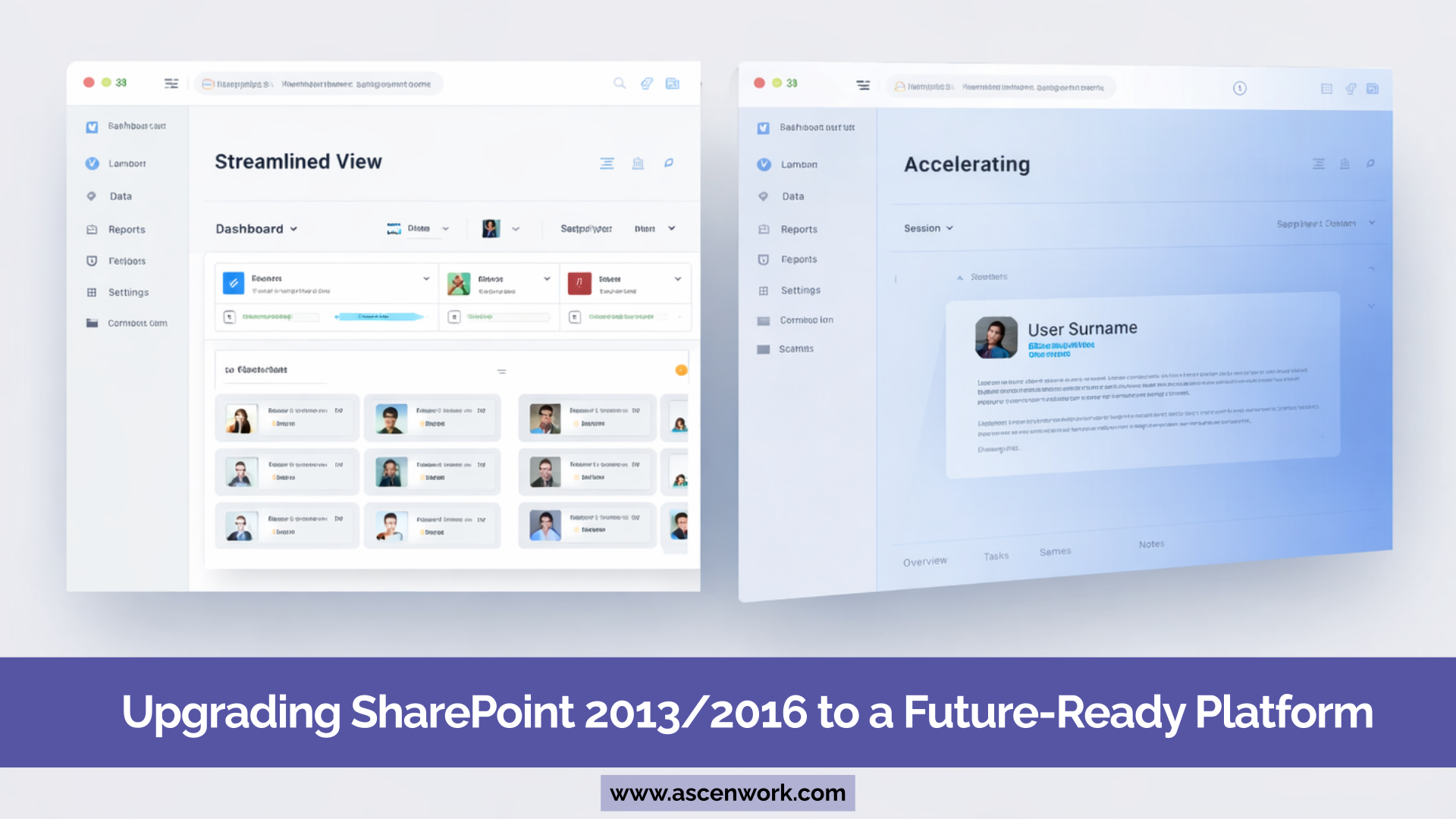
SharePoint 2013 to Online migration has become a serious discussion point for many enterprises still running legacy environments. If your organization is using SharePoint 2013 or 2016, you already know that support limitations, security concerns, and integration gaps are increasing every year.
Many businesses delayed modernization because their existing system “was working fine.” But today, the risks of staying on legacy versions are higher than ever. Security updates are limited, infrastructure costs are rising, and collaboration expectations have changed.
A proper SharePoint 2013 to SharePoint Online upgrade strategy is not just a technical move. It is a business modernization step that improves security, scalability, and long-term efficiency.
Defining a governance framework after migration is the right instinct — the harder part is knowing what the SharePoint Online environment actually looks like before you can govern it. ShareGate gives IT teams a complete view of the migrated tenant: where permissions inheritance has broken, which sites and files are externally shared, and which content is accessible in ways that weren’t intended when the migration plan was written.
That visibility matters especially as organizations prepare for Microsoft 365 Copilot. Copilot surfaces content based on permissions — oversharing that was tolerable in a legacy environment becomes a direct data exposure risk in a Copilot-enabled tenant. ShareGate flags those gaps so governance policies have a real baseline to work from, not just a blank framework.
Ready to Modernize Your SharePoint?
Start Your Migration PlanSome organizations assume that continuing with SharePoint 2013 or 2016 is cost-effective. In reality, it often creates hidden risks.
1. Compliance and Security Risks
Older SharePoint versions do not receive the same level of security updates as cloud-based systems. With rising cybersecurity threats, relying on outdated infrastructure can expose sensitive business data.
Enterprises operating under compliance frameworks face additional risks if audit trails and security controls are not updated.
2. Performance and Infrastructure Costs
Maintaining on-premises servers requires hardware upgrades, patch management, and IT maintenance resources. Over time, these operational costs increase.
Cloud-based SharePoint Online reduces infrastructure dependency and improves performance with Microsoft-managed updates.
3. Integration Limitations
Modern tools like Microsoft Teams, Power Automate, and other Microsoft 365 applications integrate seamlessly with SharePoint Online. Legacy environments struggle with these integrations, limiting collaboration and automation potential.
Staying on legacy systems may seem stable today, but it restricts future growth.
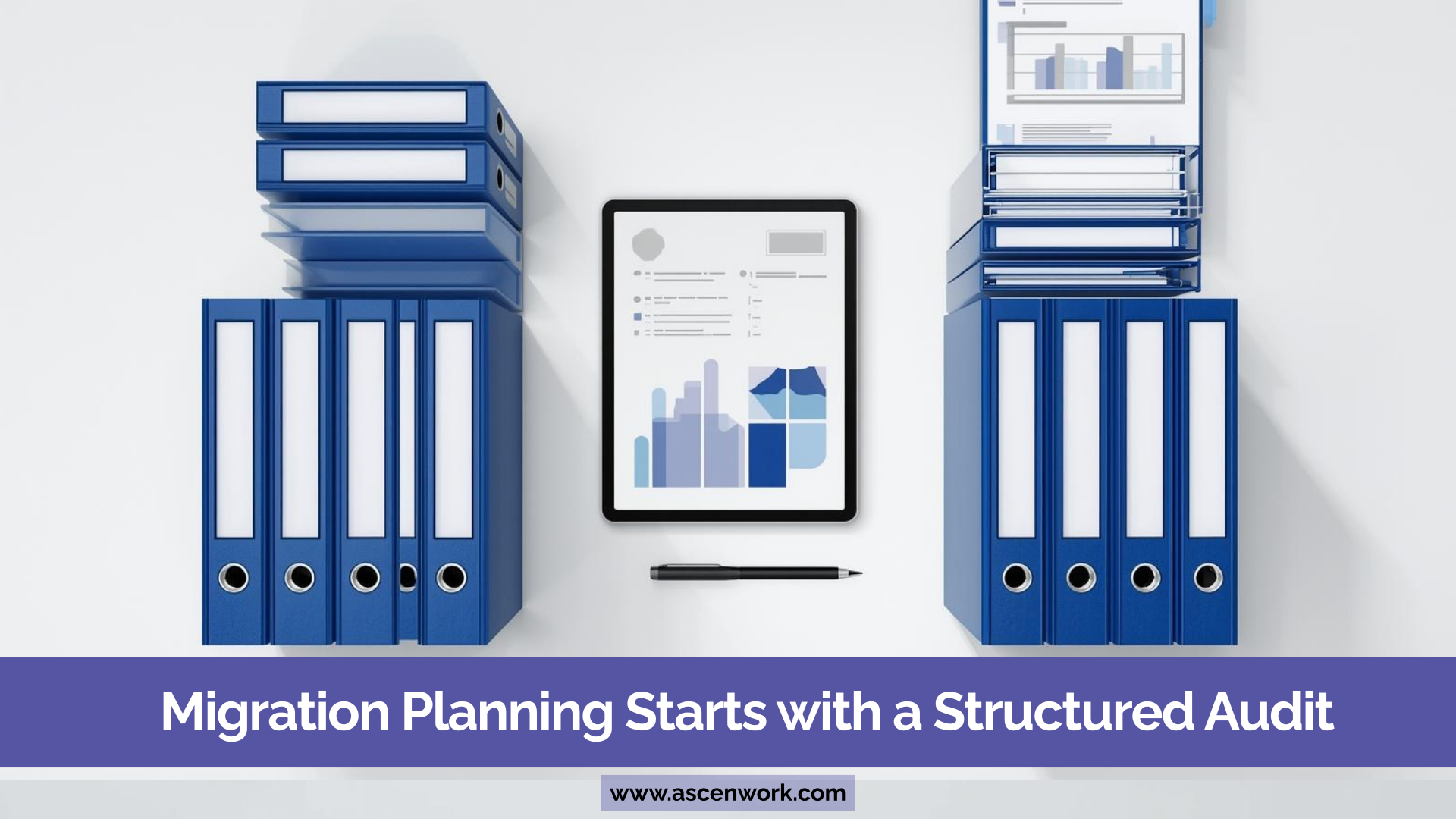
Before starting a SharePoint 2016 migration or SharePoint legacy system upgrade, enterprises must conduct a detailed assessment. Skipping this step often leads to migration delays and unexpected issues.
Custom Code Audit
Many SharePoint 2013 environments include farm solutions or custom web parts. These need evaluation because not all legacy customizations are compatible with SharePoint Online.
Workflow Audit
Classic workflows and third-party workflow tools must be reviewed. Some may require redesign using Power Automate or modern solutions.
InfoPath Forms Review
InfoPath forms are commonly used in older SharePoint setups. Since InfoPath is deprecated, organizations must plan alternatives before migration.
Database and Content Size
Large content databases, duplicate data, and outdated files increase migration complexity. Data cleanup helps reduce migration time and cost.
Farm Architecture Complexity
If your environment includes multiple farms or custom configurations, the migration strategy becomes more detailed.
A structured audit reduces surprises during execution.
Modernize Legacy Customizations
Get Free DemoA successful SharePoint 2013 to Online migration follows a clear roadmap. Rushing the process often results in broken permissions and workflow failures.
1. Environment Analysis
Understand your current tenant architecture, content types, workflows, and dependencies. This forms the base of your modernization roadmap.
2. Data Cleanup and Restructuring
Remove outdated content, restructure libraries, and define new information architecture aligned with SharePoint Online best practices.
3. Modernization Planning
Instead of simply moving old structures to the cloud, redesign where required. Modern pages, improved navigation, and updated workflows improve usability.
4. Pilot Migration
Start with a limited dataset. Test permissions, workflows, and integrations before moving full production data.
5. Full Deployment
Execute phased migration to minimize downtime. Ensure validation and user communication throughout the process.
This structured approach helps enterprises upgrade SharePoint without downtime and operational disruption.
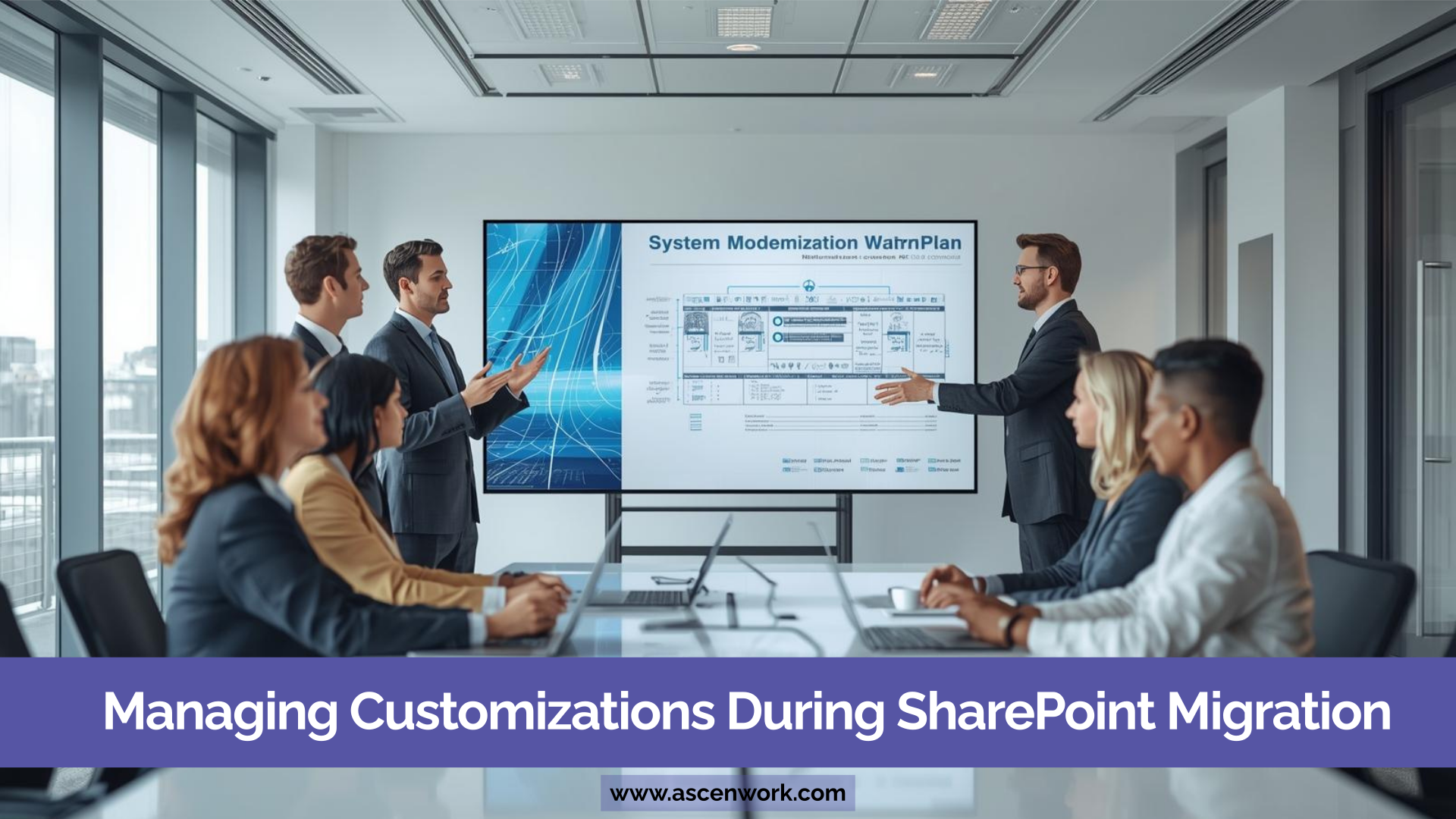
This is where most migrations become complex.
Older SharePoint environments often include:
-
Farm solutions
-
Custom web parts
-
Classic workflows
-
Third-party add-ins
-
InfoPath-based processes
Not all of these can be directly migrated.
Some need redevelopment using modern SharePoint Framework (SPFx). Others may require replacement with Power Platform tools.
Ignoring custom components during migration can lead to broken business processes.
A proper SharePoint modernization strategy ensures:
-
Custom workflows are mapped and redesigned
-
Deprecated features are replaced with modern alternatives
-
Integrations continue to function smoothly
Migration does not end after data transfer. Many enterprises make the mistake of stopping at “data moved successfully.”
Post-migration optimization is equally important.
Governance Framework
Define permissions, content lifecycle policies, and security standards.
User Adoption and Training
Provide structured onboarding sessions so teams can effectively use modern SharePoint features.
Automation Opportunities
After upgrading, you can introduce workflow automation, document approval systems, and integration with Microsoft 365 tools.
A well-planned SharePoint 2016 migration opens opportunities for digital transformation beyond document storage.
Upgrade to SharePoint Online Today
Talk to Migration ExpertsHave a question? check these answers.
Migration involves environment assessment, data cleanup, modernization planning, pilot migration, and phased deployment. A structured approach reduces risk and downtime.
Security vulnerabilities, compliance issues, limited integrations, and rising infrastructure costs are common risks.
SharePoint 2016 has extended support timelines, but it does not offer the flexibility, scalability, and seamless integrations available in SharePoint Online.
The best approach includes a full technical audit, modernization planning, and phased migration rather than a direct lift-and-shift.
Yes, but some custom solutions may require redevelopment or replacement with modern SharePoint or Power Platform tools.